Why Is My iPhone 17 Overheating While Charging?
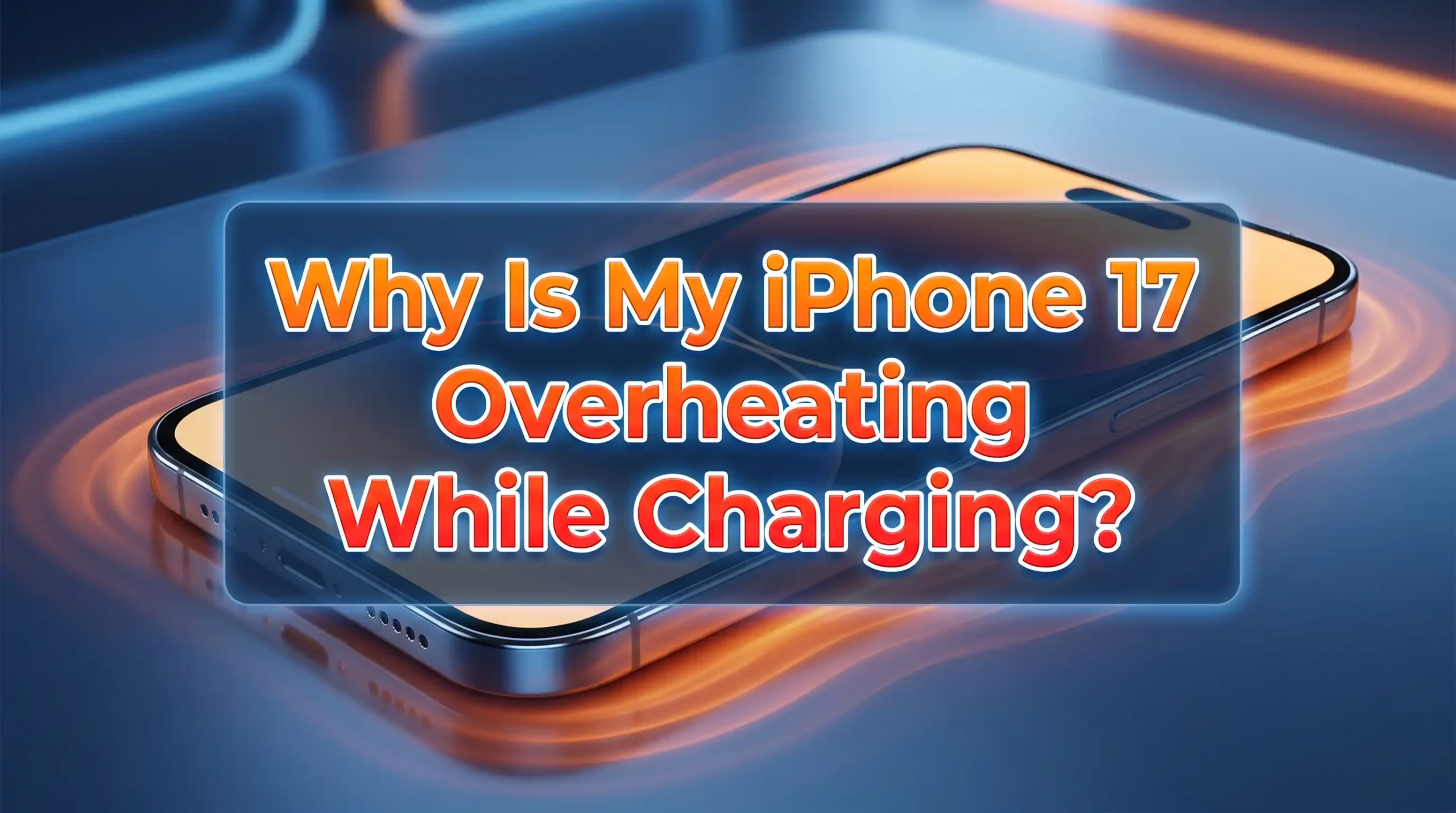
Overheating while charging is one of the most concerning issues iPhone 17 users face, as excessive heat can damage battery health and reduce device lifespan.
If your iPhone 17, 17 Pro, or 17 Pro Max feels uncomfortably hot during charging sessions, you’re experiencing a problem that affects many users, especially after updating to iOS 26.3 and later versions.
While some warmth during charging is normal due to energy conversion, temperatures that make the device too hot to hold indicate a serious problem requiring immediate attention.
In a Nutshell
- Remove your phone case during charging as thick cases trap heat and prevent proper thermal dissipation
- Use Apple-certified chargers only because incompatible adapters deliver inconsistent power causing heat buildup
- Close background apps and disable features that consume processor power during charging sessions
- Charge in cool environments avoiding direct sunlight and hot surfaces that raise ambient temperature
- Update to latest iOS version as Apple addresses indexing and background process bugs that cause overheating
- Monitor battery health settings to identify if degraded battery capacity is causing excessive heat generation
Understanding Normal vs Excessive Charging Heat
Some warmth during charging is completely normal and expected. When electricity flows into your iPhone’s battery, the energy conversion process naturally generates heat as a byproduct.
Lithium-ion batteries in particular warm up during both charging and discharging cycles. Your iPhone 17 may feel slightly warm to the touch, especially around the camera area where internal components are densest.
However, excessive heat crosses into problematic territory. If your device becomes uncomfortably hot to hold, displays temperature warnings, or feels hot enough to cause concern, you’re experiencing abnormal overheating.
Apple designs iPhones to operate safely between 0°C and 35°C ambient temperature, and internal safety systems trigger warnings when components exceed safe thresholds.
The distinction matters because normal warmth requires no action, while excessive heat demands troubleshooting to prevent permanent battery damage, processor throttling, or potential safety hazards.
If your iPhone displays a temperature warning screen or stops charging automatically, the device has detected dangerous heat levels and entered protective mode. This guide focuses on the excessive heating scenarios that indicate underlying problems.
Incompatible Chargers Generate Excessive Heat
Using non-Apple certified chargers is a primary cause of overheating during charging. Third-party chargers without MFi certification often deliver inconsistent voltage and current, forcing your iPhone’s power management system to work harder to regulate incoming electricity.
This extra processing generates significant heat beyond normal charging temperatures.
Fast chargers from unknown brands are particularly problematic. While Apple supports fast charging with appropriate adapters, cheap alternatives may claim high wattage delivery but actually provide unstable power output that fluctuates during the charging cycle.
Your iPhone compensates for these fluctuations, creating heat in the charging circuitry and battery management chips.
Always use Apple’s official charging cables and adapters or MFi-certified alternatives from reputable brands. Check for the MFi badge on packaging, which indicates Apple has tested and approved the accessory for safe use.
While these cost more than generic options, they deliver clean, stable power that charges efficiently without generating excessive heat. Many users report that switching from a cheap Amazon charger to an official Apple adapter completely eliminated their overheating problems.
Pros: Official chargers deliver stable power, reduce heat generation, protect long-term battery health
Cons: Higher cost than generic alternatives, limited availability in some regions, requires keeping track of authentic accessories
Phone Cases Trap Heat And Prevent Cooling
Thick protective cases, while excellent for drop protection, act as thermal insulators that trap heat generated during charging.
Materials like silicone, leather, and multi-layer rugged cases create an insulating barrier that prevents heat from dissipating into the surrounding air. This is especially problematic with fast charging, which generates more heat than standard 5W charging.
The iPhone 17’s aluminum and glass construction is designed to conduct heat away from internal components to the exterior surfaces where air can cool it.
When you wrap the device in a thick case, you block this natural cooling pathway, causing heat to accumulate inside. The battery and processor then reach higher temperatures than Apple’s engineers intended, potentially triggering thermal throttling or warning messages.
Remove your case before charging, especially when using fast charging or wireless charging which generates even more heat than wired charging. Let your iPhone charge naked on a cool, hard surface like a wooden desk or metal stand that can help draw heat away.
Many users find that this simple change drops charging temperatures by 10-15 degrees Fahrenheit, eliminating overheating entirely.
Pros: Immediate temperature reduction, costs nothing, allows proper thermal management
Cons: Device more vulnerable to drops while charging, need to remember to remove case, inconvenient for frequent charging
Background App Activity Consumes Power During Charging
Your iPhone can overheat during charging if processor-intensive apps continue running in the background. When the processor works hard while simultaneously charging, the combined heat from both activities exceeds what the thermal management system can efficiently dissipate.
This is especially problematic during the initial charge after updating iOS, when system processes run intensive indexing operations.
Common background activities that generate heat include photo library indexing, iCloud syncing, app updates downloading, location services, and background app refresh.
When these processes coincide with charging, particularly fast charging, the device can become uncomfortably hot. The problem intensifies if you continue using the phone during charging, adding screen brightness and active app usage to the heat equation.
Close all apps before charging by double-clicking the home button or swiping up from the bottom and swiping away all app cards. Then enable Low Power Mode by going to Settings > Battery > Low Power Mode.
This reduces background activity, lowers processor speeds, and minimizes heat generation while your battery charges. Many users report that charging with Low Power Mode enabled keeps their iPhone 17 noticeably cooler.
Pros: Reduces simultaneous heat sources, charges battery faster with less load, simple toggle setting
Cons: Disables some features temporarily, requires remembering to enable, doesn’t address hardware-related heating
Environmental Temperature Affects Charging Heat
The ambient temperature where you charge your iPhone significantly impacts overall heat levels. Charging in direct sunlight, hot cars, or warm rooms raises the baseline temperature before charging heat even adds to it.
Apple specifies that iPhones should operate in environments between 0°C and 35°C, with charging ideally occurring in the cooler portion of that range.
Placing your iPhone on heat-retaining surfaces like beds, couches, or carpets creates hotspots where heat can’t escape. These soft surfaces block ventilation around the device and insulate it from cooler air.
The charging circuitry generates heat that has nowhere to go, causing temperatures to climb rapidly beyond safe levels. This is compounded when charging overnight under pillows or blankets.
Always charge on hard, cool surfaces like wooden desks, glass tables, or metal stands that help conduct heat away from your device. Choose the coolest room in your home, away from windows with direct sunlight or heat sources like radiators.
Some users even place a thin piece of aluminum foil under their iPhone while charging to improve heat dissipation, though this should be done carefully to avoid blocking charging ports or creating safety hazards.
Pros: Addresses external heat contribution, improves overall thermal management, requires no software changes
Cons: May need to change charging location, not always possible in small living spaces, requires environmental awareness
iOS Software Bugs Cause Processor Overactivity
Software bugs in iOS can cause abnormal processor activity during charging, particularly in the first few weeks after major updates.
iOS 26.3 introduced several background processes that run during idle charging time, including photo analysis, Siri learning, and system optimization. When these processes run inefficiently due to bugs, they generate excessive heat.
Apple acknowledged these issues in various iOS updates, with iOS 26.3 and iOS 26.4 including fixes for background task management that reduced charging temperatures for many users.
However, some devices continue experiencing heat problems due to specific app conflicts or incomplete indexing processes. The system attempts to perform resource-intensive tasks while charging, assuming users won’t notice, but bugs prevent proper thermal management.
Update to the latest iOS version available for your iPhone 17 by going to Settings > General > Software Update. After updating, restart your device and then let it charge overnight while connected to Wi-Fi.
This allows the system to complete indexing and optimization tasks that may be causing heat. Many users report that heat issues resolve after 5-7 days as background processes finish their initial work.
Pros: Addresses root software causes, benefits from Apple’s bug fixes, improves overall system stability
Cons: Requires waiting for Apple updates, may take days for indexing to complete, doesn’t fix all heat issues
Wireless Charging Generates More Heat Than Wired Charging
Wireless charging is inherently less efficient than wired charging, with energy loss through electromagnetic induction converting to heat.
While convenient, MagSafe and Qi wireless chargers typically run 10-15% less efficiently than Lightning or USB-C cables, meaning more energy becomes heat instead of stored battery charge. This efficiency gap intensifies with fast wireless charging.
The iPhone 17’s MagSafe system can deliver up to 15W wirelessly, but this generates significantly more heat than plugging in a cable.
The charging coils in both the phone and charger heat up during power transfer, and when combined with the battery heating during actual charging, temperatures can climb quickly. Thick phone cases further worsen this problem by adding insulation between the coils and cooling air.
If your iPhone overheats during wireless charging, switch to wired Lightning or USB-C charging temporarily to see if temperatures improve.
If you prefer wireless charging convenience, use it for overnight charging when your phone can charge slowly at lower wattage, which generates less heat.
Reserve wired charging for times when you need fast charging during the day. Some users find that removing their phone case and using a fan-cooled wireless charging stand eliminates overheating entirely.
Pros: Wired charging is more efficient, generates less heat, charges faster overall
Cons: Less convenient than wireless, requires cable management, doesn’t work if Lightning port is damaged
Battery Health Degradation Increases Heat Generation
As your iPhone’s battery ages, its internal resistance increases and charging efficiency decreases. Older batteries with reduced capacity have to work harder to accept charge, generating more heat in the process.
If your iPhone 17 is several months old and has undergone hundreds of charge cycles, battery degradation may be contributing to overheating.
Check your battery health by going to Settings > Battery > Battery Health. Look at the Maximum Capacity percentage and the Peak Performance Capability status.
If capacity has dropped below 85% or you see messages about reduced peak performance, your battery’s declining health is likely generating extra heat during charging. Degraded batteries also charge less efficiently, converting more energy to heat rather than stored charge.
If battery health is significantly degraded, consider having Apple replace the battery. A fresh battery charges more efficiently with less heat generation and restores your device to optimal thermal performance.
Apple offers battery replacement services at Apple Stores and authorized providers. While this costs money, it extends your device’s usable life and eliminates overheating problems caused by aging battery chemistry.
Pros: Restores optimal charging efficiency, reduces heat generation, extends overall device lifespan
Cons: Requires professional service, costs $99-$119 depending on model, requires being without phone during service
Fast Charging Accelerates Heat Buildup
Fast charging pushes higher wattage into your battery to reduce charging time, but this increased power delivery generates proportionally more heat.
When you use an 18W, 20W, or 30W USB-C adapter instead of a standard 5W charger, you’re forcing more electrons through the battery faster, creating more thermal energy as a byproduct.
The iPhone 17 supports fast charging up to 20W with appropriate adapters, allowing you to charge to 50% in about 30 minutes.
However, this rapid charging generates significantly more heat than slow charging with a 5W adapter. If your device already runs warm due to other factors like background processes or a thick case, adding fast charging can push temperatures into the danger zone.
When overheating is a concern, use a standard 5W or 12W charger overnight instead of fast charging. Slow charging is gentler on battery longevity and generates minimal heat, making it ideal for extended charging sessions when you’re not in a hurry.
Reserve fast charging for times when you genuinely need quick power, and always remove your case and charge in a cool environment when using high-wattage adapters.
Pros: Slower charging generates less heat, better for long-term battery health, uses existing 5W adapters
Cons: Much longer charging time, less convenient for daytime top-ups, requires having multiple charger types
Disable Location Services And Background App Refresh
Location services and background app refresh are significant battery consumers that generate processor heat during charging. Many apps constantly track your location or refresh content in the background, activities that continue running even while your device charges.
This simultaneous processing and charging creates compounding heat that thermal management systems struggle to dissipate.
Go to Settings > Privacy & Security > Location Services and review which apps have “Always” access. Change unnecessary apps to “While Using” or “Never” to reduce background GPS usage.
Then navigate to Settings > General > Background App Refresh and either disable it entirely or selectively turn it off for apps that don’t need real-time updates. Social media apps are notorious for excessive background activity.
These changes reduce the processor workload during charging, allowing heat management systems to focus solely on charging temperatures rather than combined charging and processing heat.
Many users report that disabling background refresh for all apps except essential ones like Messages and Mail significantly reduces charging temperatures. The trade-off is that apps won’t update content until you actively open them, but this minor inconvenience is worth it for cooler, safer charging.
Pros: Reduces simultaneous heat sources, improves battery life overall, simple settings changes
Cons: Apps don’t update in background, may miss notifications, requires configuring multiple apps individually
Reset All Settings To Clear Configuration Errors
Persistent software configuration errors can cause abnormal thermal behavior that survives normal restarts and updates.
Corrupted system settings related to power management, background processes, or network activity may keep your processor active during charging when it should be idle. Resetting all settings clears these corrupted configurations without deleting your personal data.
Navigate to Settings > General > Transfer or Reset iPhone > Reset > Reset All Settings. Enter your passcode to confirm this action. The reset process takes about 5 minutes and restarts your device.
Note that this resets all customized settings including Wi-Fi passwords, wallpapers, notification preferences, and accessibility options, but preserves your photos, apps, messages, and other personal data.
After the reset completes, set up essential settings like Wi-Fi and Bluetooth, but leave optional features disabled temporarily. Charge your device and monitor temperatures to see if the overheating problem has resolved.
If charging stays cool after the reset, you can gradually re-enable features one by one to identify if a specific setting was causing the heat issue. This method is particularly effective when overheating started after changing multiple settings or installing several apps.
Pros: Clears deep configuration errors, preserves personal data, often resolves mysterious heating issues
Cons: Requires reconfiguring all settings, takes time to restore preferences, Wi-Fi passwords must be re-entered
Contact Apple Support For Battery Hardware Inspection
If all troubleshooting fails and your iPhone 17 continues overheating during charging, you may have a hardware defect in the battery, charging circuitry, or thermal management system.
Manufacturing defects, though rare, do occur and some iPhone 17 units have shown battery swelling or defective charging controllers that generate excessive heat regardless of environmental conditions or software state.
Contact Apple Support through the Apple Support app, website, or phone to arrange diagnostics. Apple’s remote diagnostic tools can check battery health metrics, charging controller functionality, and thermal sensor readings to identify potential hardware failures.
If diagnostics suggest a hardware problem, Apple will arrange either mail-in service or an appointment at an Apple Store for physical inspection.
Devices with confirmed hardware defects are typically repaired or replaced under warranty at no cost. Even out of warranty, documented safety issues like excessive heating may qualify for service programs or reduced-cost repairs.
Document your issue with notes about temperatures, when the problem started, and what troubleshooting you’ve already attempted. Apple technicians appreciate thorough documentation and may expedite service for legitimate safety concerns.
Pros: Access to professional diagnostics, warranty coverage for defects, definitive hardware assessment
Cons: May require shipping device, potential wait times, no immediate solution
Frequently Asked Questions
Is it normal for iPhone 17 to get warm while charging?
Yes, mild warmth during charging is completely normal due to energy conversion in the battery and charging circuitry. If your device feels slightly warm to the touch, especially during fast charging, this indicates normal operation.
Can overheating damage my iPhone 17 battery permanently?
Yes, repeated exposure to high temperatures degrades lithium-ion battery chemistry, reducing maximum capacity and overall lifespan. Heat accelerates chemical reactions inside battery cells that break down electrode materials and electrolyte compounds. If your iPhone regularly overheats during charging, you’re shortening battery life and may notice reduced capacity within months instead of years.
Should I charge my iPhone 17 overnight despite heating concerns?
Overnight charging is generally safe if your device doesn’t overheat excessively. Modern iPhones use smart charging that slows down as the battery approaches 100%, reducing heat during the final charging phases. However, if your device gets very hot during charging, avoid overnight sessions until you resolve the overheating cause.
Does using my iPhone while charging cause more overheating?
Yes, simultaneous use and charging compounds heat generation from multiple sources. The screen, processor, and battery all generate heat when you actively use apps, and adding charging heat to this mix can push temperatures beyond safe thresholds. This is especially problematic with processor-intensive activities like gaming, video streaming, or video calls during charging.
Can a factory reset fix iPhone 17 overheating issues?
A factory reset may resolve overheating if the cause is corrupted software, conflicting apps, or damaged system files that Reset All Settings couldn’t fix. However, factory resets delete all personal data and require complete device setup afterward. Before taking this drastic step, try less invasive solutions like updating iOS, resetting all settings, and eliminating environmental factors.

Hi, I’m Rosie Tate — a tech enthusiast, gadget geek, and the creator of RapidConvertLab! 🚀 I’ve spent years exploring the ever-evolving world of electronics, smart devices, and Amazon’s hidden tech treasures. Through my honest, hands-on reviews, I help everyday shoppers cut through the noise and pick gadgets that truly deliver value. When I’m not testing a new device, I’m probably unboxing one! 📦✨