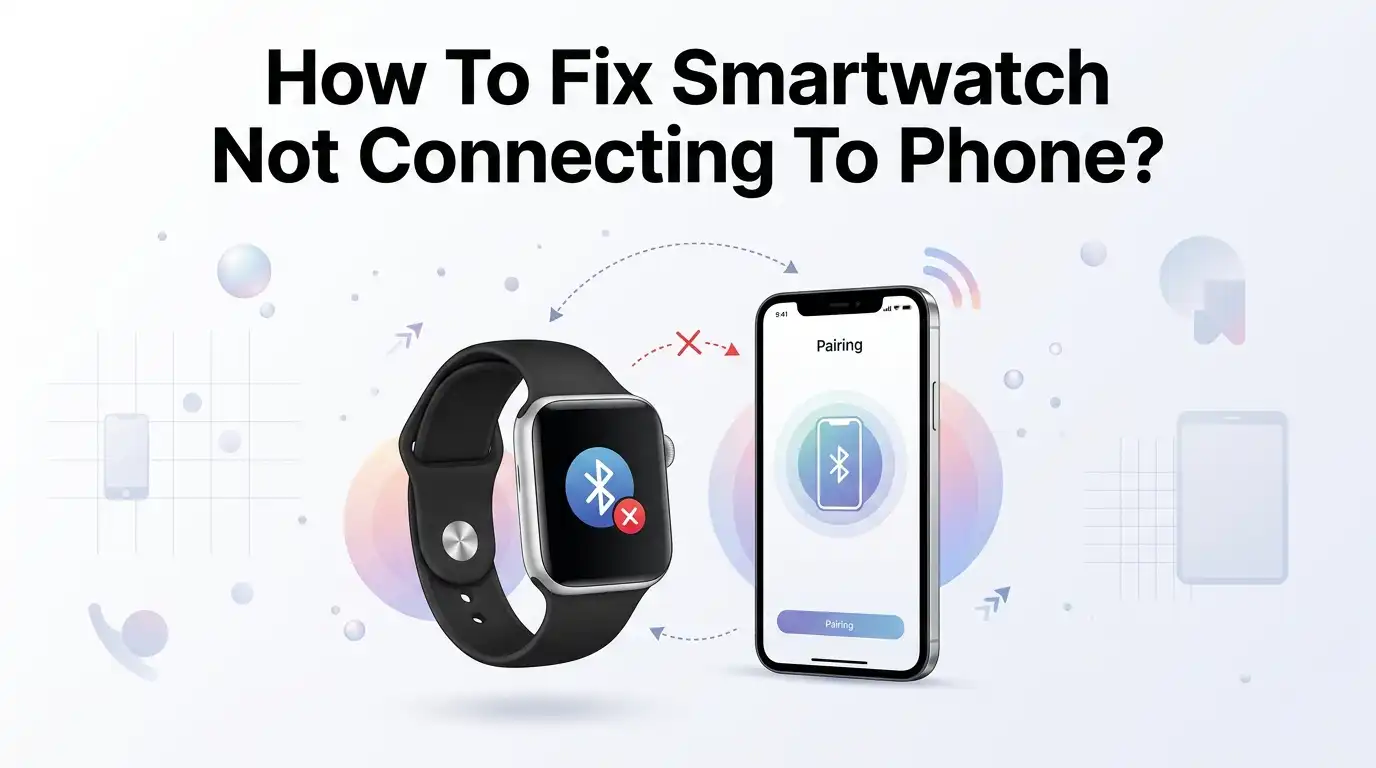
How To Fix Smartwatch Not Connecting To Phone?
Your smartwatch just stopped talking to your phone. No notifications. No call alerts. No step tracking. It feels like your smart gadget turned into a plain wristwatch overnight.
You are not alone, and the good news is simple. Most connection problems have easy fixes you can do at home.
This guide gives you clear, tested steps to bring your smartwatch and phone back together. You will learn what causes the problem, how to fix it fast, and how to stop it from happening again.
Key Takeaways
- Bluetooth is the main link between your watch and phone. If Bluetooth is off, glitchy, or blocked, nothing else works. Always check this first.
- A simple restart fixes most problems. Turning both devices off and on again clears temporary software bugs. This is the fastest solution and works surprisingly often.
- Forget and re-pair your watch when the old connection breaks. A corrupted pairing profile stops your devices from syncing, so a fresh pairing usually helps.
- Updates matter a lot. Old phone software, outdated watch firmware, or an old companion app can break Bluetooth. Keeping everything current prevents many issues.
- App permissions and battery savers often block background connections. Give your companion app full access and turn off aggressive battery limits for it.
- A factory reset is your last resort. It erases your watch data but clears deep software errors. Use it only after other methods fail, and back up first.
Why Your Smartwatch Wont Connect To Your Phone
Before you fix the problem, it helps to know the cause. Most connection issues come from software, not broken hardware. Your watch and phone talk through Bluetooth, and this link is sensitive to small errors.
Common reasons include Bluetooth being turned off, a corrupted pairing profile, or outdated software on either device. Airplane mode, low battery, and distance between devices also break the link. Sometimes a battery saver mode quietly kills the background connection.
Interference from other wireless gadgets can weaken the signal too. Knowing this saves you time. You can skip random guessing and target the real cause. The steps below move from easy checks to deeper fixes, so start at the top and work down.
Check Your Bluetooth Settings First
Bluetooth is the bridge between your watch and phone. If it is off or stuck, nothing connects. This is always your first step. Open your phone settings, tap Bluetooth, and confirm it is turned on.
Next, look for your watch name in the paired devices list. Tap it to connect. On some phones, Bluetooth turns off after a system update or a network reset, so double check it. Toggle Bluetooth off and then on again to refresh the signal.
Pros: This fix takes seconds and solves many problems instantly. It needs no technical skill and risks nothing.
Cons: It only works for simple glitches. If your pairing profile is broken or software is outdated, this step alone will not fix it, and you must try more.
Keep Both Devices Close Together
Distance matters more than people think. Bluetooth has a limited range, and thick walls or metal objects weaken it fast. During pairing, keep your watch and phone within one meter of each other. Closeness gives the strongest, most stable signal.
Also remove barriers between them. Do not keep your phone in one room and your watch in another. A weak signal causes dropped connections and failed syncs. If you pair in a crowded area with many Bluetooth devices, move somewhere quieter.
Pros: This costs nothing and improves connection strength right away. It also helps prevent future drops.
Cons: It is only a partial fix. Distance rarely blocks a connection on its own unless combined with other issues. You will likely need this step alongside others, not instead of them.
Turn Off Airplane Mode
Airplane mode shuts down all wireless signals at once. This includes Bluetooth, WiFi, and mobile data. If airplane mode is on, your watch and phone cannot see each other. Many people turn it on by accident and forget.
Check both your phone and your watch. On your phone, open the quick settings panel and look for the airplane icon. Tap it off if it glows. On your watch, swipe to the settings and confirm airplane mode is disabled too.
Pros: This is a one tap fix that solves the problem instantly when airplane mode is the cause. It is easy to spot and easy to correct.
Cons: It only helps if airplane mode was actually on. If your issue comes from a deeper software bug, this step will make no difference at all.
Restart Both Your Watch And Phone
A restart clears temporary software errors that block connections. This simple trick fixes a huge number of Bluetooth problems. Think of it as giving both devices a fresh start.
Turn off your smartwatch completely. Wait a few seconds, then power it back on. Do the same with your phone. On many watches, you press and hold the power button for around fifteen seconds until it shuts down. Once both are fully restarted, try connecting again.
Pros: This is fast, free, and safe. It erases no data and often works when nothing else seems wrong. Many experts suggest it as the first real fix.
Cons: The fix may be temporary if a bigger problem exists. If the connection breaks again soon, you know the restart only masked a deeper issue.
Forget And Re Pair Your Smartwatch
Sometimes the saved pairing between your devices gets corrupted. When this happens, they refuse to sync even though Bluetooth works fine. The best fix is to forget the connection and start fresh.
On your phone, open Bluetooth settings and find your watch. Tap it and select Forget or Unpair. Then restart both devices. Open your companion app and pair the watch again as if it were brand new. Follow the on screen steps to finish.
Pros: This clears broken pairing data and rebuilds a clean connection. It fixes many stubborn problems that a simple restart cannot.
Cons: Re pairing takes a few minutes and some patience. You may need to redo some watch settings after pairing. On certain watches, you also remove the device from Bluetooth memory before it works again.
Update Your Phone, Watch, And Companion App
Outdated software is one of the most common causes of connection trouble. Old versions often carry Bluetooth bugs that break syncing. Updates fix these bugs and improve stability.
Check three things. First, update your phone system in settings. Second, update the watch firmware through the companion app. Third, update the companion app itself from your app store. Keep all three current for the best results.
Pros: Updates fix known bugs and add new features. They often solve connection problems that seem random and hard to trace. This keeps your setup healthy long term.
Cons: Updates take time and need a good internet connection and enough battery. In rare cases, a new update itself causes a fresh bug, so keep an eye out after installing one.
Check App Permissions And Background Settings
Your smartwatch depends on its companion app to stay connected. If the app lacks the right permissions, Bluetooth communication fails. This is a hidden cause that many people miss.
Open your phone settings and find the companion app. Confirm it has permission for Bluetooth, location, and background activity. On Android, location must often be on for the phone to find the watch. Also allow the app to run in the background at all times.
Pros: This fixes silent connection drops caused by blocked permissions. It is a lasting fix that keeps notifications flowing reliably.
Cons: Finding the exact settings can be confusing since menus differ by phone brand. Turning on location and background activity may use a little more battery, though the tradeoff is usually worth it.
Disable Battery Saver And Optimization
Battery saver modes help your phone last longer, but they can hurt your watch connection. Aggressive power saving often kills background apps, including your companion app. When the app stops running, your watch loses its link.
Open your phone battery settings. Find battery optimization and locate your companion app. Set it to not optimized or unrestricted. This lets the app run freely in the background. Also turn off any extreme power saving mode while you troubleshoot.
Pros: This keeps your watch connected all day without random drops. It solves a problem that many users never suspect.
Cons: Your phone battery may drain a little faster since the app runs constantly. You trade some battery life for a stable connection, which most people find fair and worthwhile.
Reset Your Phones Network Settings
If Bluetooth keeps failing, your phone network settings may be the problem. A network reset clears Bluetooth, WiFi, and mobile data settings all at once. This gives your phone a clean slate to work from.
Open your phone settings and search for reset options. Choose Reset network settings. Confirm and let the phone restart. After the reset, turn Bluetooth back on and pair your watch again from the start.
Pros: This clears stubborn Bluetooth conflicts that other fixes miss. It often works when the problem sits deep in your phone system.
Cons: You lose all saved WiFi passwords and paired Bluetooth devices. You must reconnect to your networks and re pair everything afterward. It is more effort, so try it only after simpler steps fail.
Rule Out Signal Interference
Bluetooth signals can get blocked by other wireless devices and physical objects. Crowded signal areas cause weak or dropped connections. This is easy to overlook but simple to test.
Move to a different room with fewer electronic devices. Turn off nearby Bluetooth gadgets like speakers, earbuds, and other watches. Keep your phone and watch away from microwaves, routers, and large metal surfaces. Then try connecting again in the cleaner space.
Pros: This quick test tells you if interference is the culprit. It needs no tools and no technical skill. You may fix the issue just by changing location.
Cons: It only helps when interference is the real cause. If the problem lies in software or hardware, moving rooms will not change anything, and you must keep troubleshooting.
Factory Reset Your Smartwatch
When nothing else works, a factory reset clears deep software errors. This wipes all data on your watch and returns it to its original state. Treat it as your last resort, not your first move.
Back up any important watch data first. Then find the reset option in your watch settings, or disconnect the watch through the companion app before resetting. After the reset, set up the watch from scratch and pair it fresh.
Pros: This fixes stubborn, deep problems that survive every other fix. It gives you a totally clean start and often restores full function.
Cons: You lose all apps, settings, and stored data on the watch. Setting it up again takes time and effort. Only use this method once you have tried everything else above.
Reinstall The Companion App
Sometimes the companion app itself gets corrupted. A broken app cannot manage the connection properly, no matter what you do. Reinstalling gives you a clean, working version.
Uninstall the companion app from your phone. Restart your phone to clear any leftover files. Then download the app again from your official app store. Open it, sign in, and pair your watch through the fresh setup process.
Pros: This removes hidden app bugs and corrupted files. It often fixes odd connection issues that make no sense otherwise. The whole process is quick and safe.
Cons: You may need to log in again and redo some app settings. Any data stored only inside the app could be lost unless it syncs to the cloud, so check your backup before you remove it.
When To Contact Support Or Repair
If you have tried every fix and your watch still will not connect, the problem may be hardware. A faulty Bluetooth chip or damaged part needs expert help. At this point, do not keep guessing on your own.
First, test your watch with another compatible phone. If it fails there too, the watch is likely the issue. Then contact the manufacturer support team or visit an authorized service center. Explain every step you already tried so they can help faster.
Pros: Experts can spot hardware faults you cannot see. Warranty repairs may cost you nothing. You get a proper, lasting fix.
Cons: Repairs can take days and may cost money if the warranty has expired. Sending your watch away means going without it for a while.
Frequently Asked Questions
Why does my smartwatch keep disconnecting from my phone?
Your watch usually disconnects because of battery saver settings, weak Bluetooth signal, or blocked background permissions. Turn off battery optimization for the companion app and keep both devices close. Updating your software also helps stop repeated disconnections and keeps the link steady all day.
Can I connect my smartwatch to two phones at once?
Most smartwatches connect to only one phone at a time. Trying to pair two phones causes conflicts and failed connections. To switch phones, forget the watch on the first phone, then pair it fresh on the second one for a clean, stable connection.
Do I need the internet to connect my smartwatch to my phone?
You do not need the internet for basic Bluetooth pairing. Your watch and phone connect directly through Bluetooth. However, you do need the internet for updates, app downloads, and some cloud features. A first time setup often works smoothly with WiFi turned on.
Will resetting my watch delete my fitness data?
Yes, a factory reset erases all data stored on your watch. This includes your steps, workouts, and saved settings. Before you reset, sync your watch with the companion app so your fitness history saves to the cloud. Then you can restore it after setup.
Why can my phone not find my smartwatch during pairing?
Your phone may fail to find the watch if Bluetooth is off, location is disabled, or the watch is not in pairing mode. Turn on both Bluetooth and location, keep the devices close, and put the watch into pairing mode before you search again.
How long does it take to pair a smartwatch with a phone?
Pairing usually takes two to five minutes. A first time setup may take longer because the devices share data and download updates. If your phone shows a loading screen for more than twenty minutes, restart both devices and start the pairing process again.

Hi, I’m Rosie Tate — a tech enthusiast, gadget geek, and the creator of RapidConvertLab! 🚀 I’ve spent years exploring the ever-evolving world of electronics, smart devices, and Amazon’s hidden tech treasures. Through my honest, hands-on reviews, I help everyday shoppers cut through the noise and pick gadgets that truly deliver value. When I’m not testing a new device, I’m probably unboxing one! 📦✨