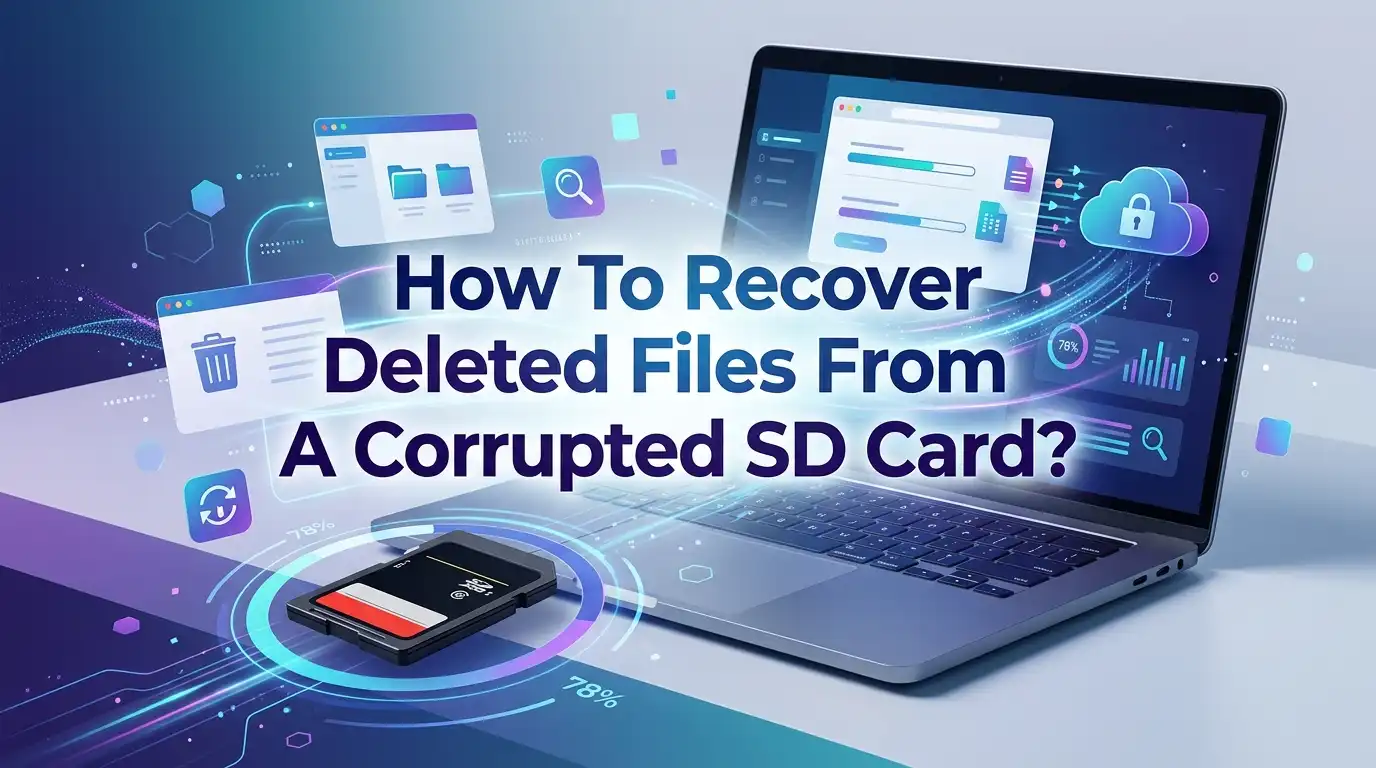
How To Recover Deleted Files From A Corrupted SD Card?
Losing your photos, videos, or work files to a corrupted SD card feels like a small disaster. One moment your card works fine. The next moment your computer shows an error or the files vanish.
You may feel stuck and worried. The good news is simple. Deleted files often stay on the card even after corruption. Your card just loses the map that points to them.
This means you can recover your data with the right steps. This guide shows you clear, tested, and safe methods. You will learn how to spot corruption, protect your files, and bring them back. Let us start the rescue.
Key Takeaways
- Stop using the card right away. Every new write can overwrite your deleted files. Remove the card from your camera or phone the moment you notice a problem.
- Recover your data first, then fix the card. Most repair methods like formatting or CHKDSK can overwrite files. Always pull your files off the card before you attempt any repair.
- Make a byte to byte copy when the data matters. A corrupted card can die during a scan. Working on a clone keeps your original safe and improves your odds.
- Free tools can work very well. Programs like PhotoRec and Recuva recover deleted files without any cost. Built in Windows tools like CHKDSK fix file system errors too.
- Physical damage needs the pros. If the card is cracked, bent, or wet, do not keep trying. A professional recovery lab gives you the best chance.
- Prevention beats recovery. Safe eject habits, trusted brands, and regular backups stop most data loss before it happens.
What Does A Corrupted SD Card Actually Mean?
A corrupted SD card has a problem that blocks normal access to your files. The problem can be software based or physical. In most cases, the file system gets damaged. The file system acts like a map that tells your device where each file sits on the card.
When this map breaks, your device cannot find the data. Your files still sit on the card. They just become invisible. Corruption does not always mean your data is gone. Common causes include sudden power loss, improper removal, malware, bad sectors, and manufacturer defects.
Sometimes the card simply reaches the end of its life. Understanding the cause helps you pick the right fix. Software corruption is usually fixable at home. Physical damage often needs expert help.
Common Signs Your SD Card Is Corrupted
You need to spot corruption early so you can save your files in time. Several clear signs point to a damaged card. Your computer may show a message like “You need to format the disk before you can use it.” Files you never deleted may suddenly disappear.
The card may not show up in your camera or PC at all. You might see strange file names that no program can open. The card may also display the wrong storage capacity, such as showing 30GB on a 64GB card. Read and write errors during transfers are another red flag.
Slow performance, where simple photo transfers take hours, also signals trouble. In some cases, the card shows up as RAW, which means the file system became unreadable. If you notice any of these signs, act fast and back up.
Stop Using The Card Immediately
This step matters more than any tool you will use. The moment you suspect corruption, stop writing anything to the card. Take it out of your camera, phone, or recorder. Do not take new photos.
Do not save new files. Do not let your device “fix” the card on its own. Deleted files do not vanish right away. They stay on the card until new data overwrites them. Every new write risks landing on top of the very files you want back.
This single habit can make the difference between full recovery and total loss. Think of your card like a chalkboard. Deleting a file only erases the label, not the writing itself. New writing covers the old text for good. So keep the card idle until you are ready to recover. Patience here protects your data.
Try Different Hardware Before Anything Else
Sometimes the card is fine and the problem sits elsewhere. This is the easiest fix, so always try it first. Start by moving the card to a different USB port on your computer. A single faulty port can cause read errors.
Next, swap your card reader or adapter for another one. Built in laptop readers fail often, so an external USB reader is worth a try. For microSD cards, test a different adapter, since the adapter alone can be the culprit. Then try the card on a second computer or device.
This tells you whether the problem follows the card or stays with your setup. If the card suddenly works on another machine, your data is safe. This method carries no risk to your files, which is why it should always come first. It costs nothing and takes only a few minutes.
Pros: It is fast, free, and completely safe for your data. Cons: It only helps when the issue is connection based, not when the card itself is damaged.
Recover Files With Free Data Recovery Software
Free recovery tools can bring back deleted files without any cost. PhotoRec is a popular open source choice that runs on Windows, Mac, and Linux. Recuva is another strong free option for Windows users.
These programs scan the card directly and find files that the file system can no longer see. The steps are simple. Connect the card through a reader. Open the software. Select your SD card from the device list. Start the scan and wait for it to finish. Then preview the found files and save them.
Always save recovered files to a different drive, never back to the same card. Saving to the same card can overwrite other files you have not recovered yet. These tools work best when the card is still detected at the system level, even if it does not open in File Explorer.
Pros: Completely free, effective for deleted files, and available on every major system. Cons: Free versions may lack support, and the interface can feel basic for beginners.
Recover Files With Paid Recovery Software
Paid recovery programs offer more features and easier interfaces. Tools in this category often include file previews, deep scans, and camera specific recovery modes. These deep scans reconstruct fragmented video files from cameras like GoPro, DJI, and Canon.
The process mirrors the free tools. You connect the card, launch the program, select the card, and run a scan. Then you preview and recover your files to a separate drive. Many paid tools offer a free trial that lets you scan and preview before you pay.
This trial helps you confirm the software can find your files first. Some let you recover a small amount of data for free, which can be enough for a few key files. The main advantage is reliability and support when your data really matters. The clean layout also helps if you feel unsure about technical steps.
Pros: User friendly, strong scan quality, and helpful customer support. Cons: Full recovery usually costs money, and prices vary widely between products.
Create A Byte To Byte Copy For Safety
A corrupted card is fragile and can fail at any moment. A byte to byte copy, also called a disk image, protects you from this risk. This copy is a complete sector by sector clone of your card saved as a single file.
Every read operation on a damaged card adds stress. If the card dies during a long scan, you could lose everything. Working on a clone removes this danger because your original card stays untouched. Many recovery programs include a built in imaging feature.
You select the card, choose to create an image, and save it to your computer. Then you scan the image instead of the real card. This approach gives you a safe, stable copy to work with as many times as you need. It is the smartest move whenever your data is truly important. The original card can rest while you focus on recovery.
Pros: Protects your original card and lets you retry scans safely. Cons: It needs free storage space equal to the card size and takes extra time.
Use The CHKDSK Command To Fix Errors
CHKDSK is a free tool built into every version of Windows. It checks your card for file system errors and tries to fix them. This method works well when the card has logical errors but no physical damage. First, note the drive letter your computer gives the card.
Then press the Windows key plus X and choose Terminal as Admin. Type the command chkdsk X: /f and replace X with your card’s letter. Press Enter and wait for the process to finish. The /f part tells CHKDSK to fix the errors it finds.
For a deeper scan, you can use chkdsk X: /x /r to recover readable data from bad sectors. One important warning applies here. CHKDSK changes the card’s data structure, so it can sometimes make recovery harder. Run recovery software first if your files matter. CHKDSK also will not work on a RAW card.
Pros: Free, built in, and effective for file system errors. Cons: It can overwrite recoverable data and fails on RAW cards or cards with no drive letter.
Assign A New Drive Letter
Sometimes your card connects but never shows up in File Explorer. This often happens because Windows fails to assign a drive letter or assigns one that clashes with another device. The fix is quick and safe for your data. Press the Windows key plus X and open Disk Management.
Find your SD card in the list of drives. Right click it and choose Change Drive Letter and Paths. Click the Change or Add button. Pick a new, unused letter from the dropdown menu and click OK.
Confirm your choice to close the window. Now check File Explorer again, and your card should appear with the new letter.
This method solves a surprisingly common problem with almost no effort. It does not touch your files, so you lose nothing by trying it. If the card still hides after this, move on to deeper fixes or recovery software.
Pros: Fast, safe, and solves a frequent visibility issue. Cons: It only helps with drive letter conflicts, not with deeper corruption.
Recover Files Using CMD And The Attrib Command
The attrib command can reveal files that corruption has marked as hidden. This trick works when your files still exist but stay invisible on the card. It does not recover deleted files, but it unhides files that seem to vanish.
First, connect the card and note its drive letter. Type cmd in the Windows search box and run it as administrator. Then type this command and replace X with your card’s letter: attrib -h -r -s /s /d X:*.*. Press Enter and wait for the process to complete.
The command clears the hidden, read only, and system attributes from your files. After it finishes, open the card in File Explorer and check for your files.
A new folder may appear holding your recovered data. This method is most useful after a virus or malware hides your files. It is free and uses only built in Windows tools, so it costs you nothing to try.
Pros: Free, fast, and great for revealing hidden files. Cons: It does not recover truly deleted files and needs care with the exact command.
Show Hidden Files Through Your Operating System
Corruption can hide your files without deleting them. Sometimes a card looks empty even though the data still sits there. Changing your view settings can bring these hidden files back into sight. On Windows, open the search bar and type File Explorer Options.
Select the matching result and go to the View tab. Find the Hidden files and folders section and choose Show hidden files, folders, and drives. You can also uncheck the option that hides protected system files for a fuller view. Click Apply and then OK to save the change.
Now open your card in File Explorer and look for your files again. This simple tweak often reveals data that seemed lost after a corruption error. It changes only your display settings, so it carries zero risk to the card. Try this method alongside the attrib command for the best results when files seem to disappear.
Pros: Risk free, simple, and quick to do. Cons: It only works when files are hidden, not deleted or overwritten.
When To Format The Card As A Last Resort
Formatting can bring a dead card back to life. But it erases the file map, so you must recover your data first. Only format the card after you have saved every file you need. This step suits cards that show as RAW or carry deep file system damage.
To fix a RAW card, open Terminal as admin and type diskpart. Then type list volume to see your card. Select the card’s volume and type format fs=exfat to give it a fresh file system. You can also right click the card in File Explorer and choose Format for a simpler route.
Leave the Quick Format box unchecked when you want a deeper clean. exFAT works across Windows, Mac, and Android and handles large files well. Choose FAT32 only if you need an older device to read the card. After formatting, your card should work normally again.
Pros: It reliably revives a corrupted card for future use. Cons: It erases all data, so recovery must come first, and results are never guaranteed afterward.
Send The Card To A Professional Recovery Service
Sometimes home methods simply cannot save your data. This is the time to call a professional data recovery center. Experts have clean rooms and special tools that home users do not. They can recover data from cards that no longer show up at all.
They also handle physically damaged cards, like ones that are cracked, bent, or water exposed. When you choose a service, look for a few key signs of quality. Pick a lab with proper clean room facilities and professional equipment.
Choose one that offers a no recovery, no fee guarantee, so you only pay for success. Read online reviews and avoid services with many complaints.
This route costs more than DIY methods, but it offers the best chance for truly important files. When your photos or work documents are irreplaceable, the price can feel worth it.
Pros: Highest success rate and the only option for physical damage. Cons: It can be expensive, and you must trust your card to a third party.
How To Prevent SD Card Corruption In The Future
The best fix is to stop corruption before it starts. A few simple habits keep your card and data safe for years. Always eject your card safely before you remove it from any device. Pulling it out mid write is a top cause of corruption.
Avoid extreme heat, cold, and water, since these conditions can damage the chip. Keep the card away from sudden power loss during writes, which often breaks the file system. Choose trusted brands, because cheap no name cards fail far more often.
Most importantly, back up your files regularly to a second location. A backup turns any future failure into a minor annoyance instead of a crisis. Handle the card gently and avoid forcing it into a tight reader. Remember that every card has a limited lifespan, so replace old cards before they fail completely.
Frequently Asked Questions
Can I recover deleted files from a corrupted SD card for free?
Yes, you can. Free tools like PhotoRec and Recuva recover deleted files at no cost. Built in Windows tools like CHKDSK and the attrib command also help fix errors and reveal hidden files. These options work well for many corruption cases. Just remember to save recovered files to a different drive, not back to the card.
Will formatting my SD card delete my files forever?
Formatting erases the file map, but your data may still sit on the card. Quick formatting often leaves files recoverable with software. Full formatting overwrites everything and makes recovery very hard. Always recover your data before you format the card. Treat formatting as a last resort once your important files are safe somewhere else.
Why do my files disappear from the SD card but the space looks used?
This usually means corruption has hidden your files, not deleted them. Your data still takes up space, but the system cannot show it. Try the attrib command in CMD to clear hidden attributes. You can also turn on Show hidden files in your folder settings. Both methods often bring the missing files right back.
Is it safe to keep using my SD card after I fix it?
It depends on what caused the problem. A simple file system error usually means the card is fine to reuse. But corruption from bad sectors or controller failure tends to return. If the card reaches the end of its life, it enters read only mode. When that happens, back up your data and replace the card right away.
What should I do if my computer does not detect the card at all?
Start with the basic checks first. Try a different USB port, a new card reader, and another computer. If the card stays invisible everywhere, the problem may be serious. Avoid repeated attempts that stress a dying card. For important data, take the card to a professional recovery lab, since they can read cards that home tools cannot.

Hi, I’m Rosie Tate — a tech enthusiast, gadget geek, and the creator of RapidConvertLab! 🚀 I’ve spent years exploring the ever-evolving world of electronics, smart devices, and Amazon’s hidden tech treasures. Through my honest, hands-on reviews, I help everyday shoppers cut through the noise and pick gadgets that truly deliver value. When I’m not testing a new device, I’m probably unboxing one! 📦✨