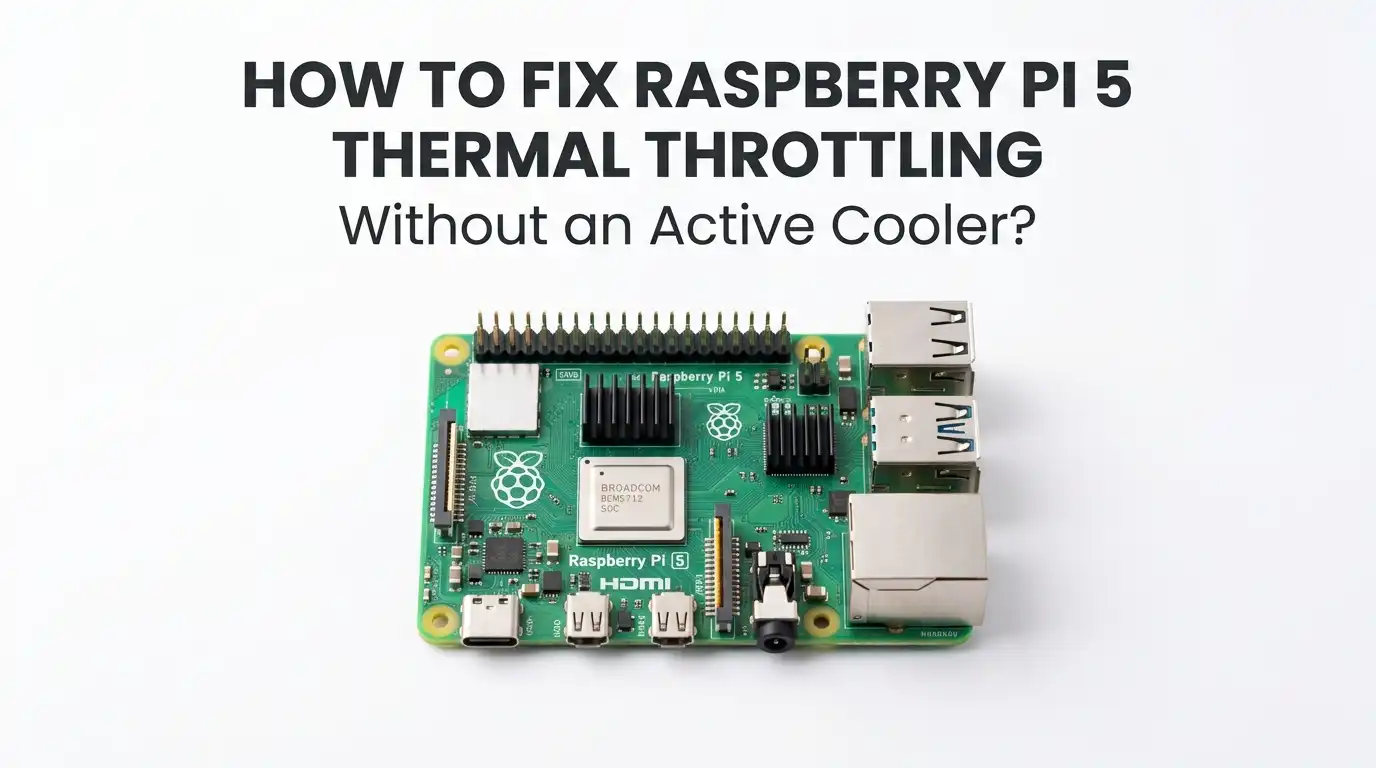
How to Fix Raspberry Pi 5 Thermal Throttling Without an Active Cooler?
Raspberry Pi 5 is fast, but it also runs warmer than older Pi boards. That extra speed feels great until the system slows down under load. If your Pi starts strong and then loses pace, heat is often the reason. The good news is that you can reduce or even avoid thermal throttling without adding a fan.
This guide shows simple ways to do that. You will learn how to check if heat is the real problem, how to improve passive cooling, and how to lower heat with safe software changes.
Each fix is practical, easy to test, and based on real Raspberry Pi 5 behavior. If you want a quieter Pi, lower dust, and fewer moving parts, this guide will help you build a setup that stays cooler with no active cooler.
Key Takeaways
- Raspberry Pi 5 starts to pull back performance as heat rises. In normal use, this may not matter much. Under long, heavy work, it matters a lot. If the board reaches the thermal limit, speed drops so the chip can protect itself. That is why short tasks may feel fine, while long tasks slow down.
- The best no fan fixes are often simple. A larger passive heatsink, more open space around the board, and a case that lets heat escape can make a clear difference. Air needs a path. If hot air stays trapped, even a good heatsink loses strength.
- Small software changes can cut heat fast. Lowering CPU speed a little, setting a lower temperature cap, and using a lighter governor can reduce temperature without making the Pi feel slow in basic work. This is a strong choice for servers, home labs, and light desktop use.
- Passive cooling has limits. It can work very well for coding, light media tasks, automation, and network jobs. It is less effective for long compiles, heavy browser use, emulation, and other steady high load tasks. You need to match the cooling method to the job.
- Testing matters more than guessing. Check temperature, run your real workload, and see if throttling happens. Then change one thing at a time. This helps you find the fix that works for your room, case, desk, and project.
- A quiet setup is possible. If you combine good passive hardware with smart settings, your Pi 5 can stay stable and useful without a fan. The goal is not perfect cold temperatures. The goal is stable performance with no thermal slowdowns in the tasks you actually run.
Understand Why Raspberry Pi 5 Gets Hot So Fast
Raspberry Pi 5 is much faster than older boards, and that extra speed creates more heat. In official testing, the board can idle at around 65C in open air with no cooling. Under heavy load, it can climb into the throttling zone. Raspberry Pi states that throttling begins at 80C and becomes stronger at 85C.
That means you do not need a broken setup to see slowdowns. A normal board in a warm room can reach those temperatures if the workload stays high for long enough. This is common, not unusual. Many users first notice it during code builds, web browsing with many tabs, media tasks, or long benchmark runs.
The key point is simple. Your goal is not to make the Pi cold. Your goal is to keep the temperature below the point where clock speed drops. Once you think in those terms, the fixes become much easier to choose.
Confirm That Thermal Throttling Is the Real Problem
Before you change anything, make sure heat is the actual cause. A slow Raspberry Pi 5 can also suffer from storage issues, too many background tasks, or power problems. Start with two simple checks. Open a terminal and run:
vcgencmd measure_temp
vcgencmd get_throttled
The first command shows the current temperature. The second command tells you if throttling has happened. If it returns 0x0, there is no throttling flag at that moment. If it shows another value after a heavy task, your Pi has hit a limit at some point.
Now run the task that usually makes the system slow. Check temperature again during that task. Do this with your real workload, not just a quick idle test. If the temperature rises close to 80C and performance drops, heat is your problem.
Pros: This method is free, fast, and gives clear proof.
Cons: It takes a bit of patience because you need to watch the system during a real load.
Give the Board More Open Space Before You Buy Anything
A Raspberry Pi 5 loses passive cooling power fast when hot air gets trapped. If your board sits flat on a desk, under a monitor, inside a tight shelf, or beside warm gear, the heat around it can build up. The first fix is often simple. Give the board more space and a cleaner path for rising heat.
Move the Pi away from routers, SSD enclosures, power bricks, and direct sunlight. Raise it slightly off the desk so warm air can leave from below as well as above. If you use a HAT or another board on top, check whether it blocks the hot area around the main chip.
This step costs nothing, but it can still help. Passive cooling works best when the surrounding air stays cooler than the board. If the area around the Pi is already warm, the heatsink has much less heat to give away.
Pros: Free, easy, and often enough for light use.
Cons: It helps less if your workload keeps all cores busy for a long time.
Add a Proper Passive Heatsink That Covers the Main Hot Area
If you want a no fan solution, a serious passive heatsink is the first real hardware upgrade to try. A tiny decorative heatsink will not do much on Raspberry Pi 5. You want a larger metal block with enough surface area to pull heat from the SoC and spread it into the air.
Clean the chip area first. Apply the thermal pad or thermal material that comes with the heatsink. Press the heatsink down evenly so it sits flat. Then boot the Pi and test the same workload again. A good passive heatsink can make a clear difference in how fast the temperature rises.
Official Raspberry Pi testing showed that passive cooling can still throttle under long heavy loads after a few minutes. That means a heatsink helps, but it is not magic. It buys you time and lower peak heat. For many real projects, that is enough.
Pros: Quiet, simple, and very effective for short and medium loads.
Cons: Long heavy tasks can still reach the thermal limit with no fan.
Mount the Raspberry Pi 5 Vertically for Better Natural Airflow
This is one of the most ignored passive cooling tricks, and it is backed by Raspberry Pi documentation. A vertical mount helps warm air rise more freely past the board and heatsink. That improves natural airflow with no moving parts at all.
If your case or stand allows it, place the board so the heatsink fins or open surface face the rising air path. If you do not have a vertical mount, even a simple nonconductive stand can help as long as the board stays stable and the ports remain easy to use. Be careful not to put stress on cables.
The gain is not huge, but it is real. Passive cooling is a game of small improvements that add up. A better mount, open space, and a good heatsink together can reduce temperature more than any one fix alone.
Pros: Free or very cheap, silent, and easy to combine with other methods.
Cons: It may not fit every desk, cable setup, or enclosure.
Choose a Passive Case or Open Frame Instead of a Heat Trap
Some cases protect the board but trap hot air. That is the worst mix for Pi 5. If you want no active cooler, choose either an open frame setup or a passive case made to move heat out through metal and vents. A sealed plastic box often looks neat, but it can raise temperature fast under load.
A good passive case gives the heat somewhere to go. Some use the whole outer shell as a heatsink. Others use vented panels and internal contact plates. If your current case feels hot on the inside and barely warm outside, it is probably holding heat instead of shedding it.
Case choice changes everything in passive cooling. If your board throttles with a decent heatsink, the case may be the weak point. Test the Pi outside the case for a day. If temperatures improve a lot, you found the problem.
Pros: A good passive case can give cleaner cable management and lower temperatures at the same time.
Cons: A bad case can make thermals much worse than running the board in open air.
Lower the CPU and GPU Clocks a Little for a Big Thermal Win
You do not always need full speed. A small clock reduction can cut heat enough to stop throttling, and in some workloads the system feels smoother because it holds a steady speed instead of bouncing between fast and slow. This is a smart trade for servers, home automation, light desktop work, and many network jobs.
Edit your boot settings with:
sudo nano /boot/firmware/config.txt
Then add settings like these:
arm_freq=2200
gpu_freq=700
Save the file and reboot. Now test again. Start with a mild change. Do not drop speed too far at once. The goal is to find the lowest heat for the least performance loss.
This is one of the strongest no fan fixes because it reduces the heat source itself. If your Pi spends long periods under load, lower clocks often work better than trying to fight the heat after it appears.
Pros: Strong thermal effect, fully silent, and easy to tune.
Cons: Peak performance goes down, so heavy tasks finish more slowly.
Set a Lower Temperature Limit to Keep the Board Under Control
Raspberry Pi firmware lets you set a lower temperature limit. This does not cool the board by itself, but it can stop the system from running right up to the hotter edge. That helps keep temperatures more stable and can prevent large swings during long jobs.
Open the same file:
sudo nano /boot/firmware/config.txt
Then add:
temp_limit=80
Reboot and test again. With this setting, the system will fall back sooner instead of waiting until higher heat builds up. In a passive setup, that earlier control can keep the case, board, and nearby parts from soaking up so much heat.
Think of this as a safety rail. It is useful when you care more about consistent behavior than maximum bursts. It works well with a passive heatsink and a lower CPU clock.
Pros: Safer sustained behavior and lower peak heat.
Cons: Performance may reduce earlier during long heavy tasks.
Use a Lighter Governor for Everyday Tasks
A lighter CPU governor can reduce heat during normal use. Raspberry Pi documentation notes that the default governor is ondemand, but a lower power choice can help reduce idle and light load heat. If your Pi acts as a light server or automation box, you may not need aggressive clock jumps all day.
You can test a lighter governor with:
echo powersave | sudo tee /sys/devices/system/cpu/cpu0/cpufreq/scaling_governor
Then use the Pi as normal for a while. Check whether the system still feels responsive. For file serving, simple scripts, terminal work, and many always on jobs, the effect on comfort can be small while the thermal gain is useful.
This fix is best for lighter work. If you often compile code or run media tasks, you may prefer the default governor and use other thermal fixes instead.
Pros: Easy to test and good for cool idle or light use.
Cons: Some tasks may feel slower to respond under sudden load.
Cut Hidden Load From Background Services and Heavy Desktop Use
Many Pi 5 boards run hot because the user thinks the system is idle when it is not. A browser with many tabs, a sync task, a database service, a container, or an indexing job can keep CPU use high in the background. Passive cooling struggles most when heat is steady and invisible.
Open top or htop and see what is actually using CPU time. Close unused browser tabs. Turn off apps that start at boot but do not help your project. If the Pi is a server, consider running without a full desktop. A headless setup often runs cooler because the GPU and desktop stack stay quieter.
This fix gives clean gains because you remove waste instead of adding hardware. It also helps storage, memory use, and system stability. Many users see real thermal improvement just by trimming the software load to fit the job.
Pros: Free, effective, and good for overall system health.
Cons: It takes time to find what you can safely remove or disable.
Match Your Workload to What Passive Cooling Can Really Handle
Official Raspberry Pi testing found that passive cooling can still hit throttling after about 200 to 300 seconds under heavy sustained load. That is a useful rule of thumb. Passive cooling is often fine for bursty work. It is less reliable for long all core stress with no break.
This means you should plan the job, not just the hardware. If you compile code, process media, or run long data tasks, break the work into smaller chunks if you can.
Add short pauses between runs. Schedule heavy jobs for cooler room temperatures. If a task must push hard for a long time, accept that no fan cooling may need a performance limit.
This is a mindset shift. Do not ask passive cooling to behave like active cooling. Ask it to stay stable within a realistic load pattern. That is how you get a quiet setup that still feels dependable.
Pros: No cost and very useful for task planning.
Cons: It may require changes to your workflow or timing.
Test Again and Build a Stable No Fan Setup
After each change, test the Pi the same way. Use your real apps, your real room, and your real case. Check temperature with vcgencmd measure_temp before the task, during the task, and after several minutes. Then check vcgencmd get_throttled again. Keep notes so you can see which change helped most.
A good no fan setup is usually a mix of fixes. For example, you might combine a real passive heatsink, vertical mounting, a better case, and a mild CPU clock reduction. Each fix adds a bit more thermal headroom. Together, they often stop throttling for normal daily use.
Do not change everything at once if you want clear results. Change one thing, test it, then keep or remove it. That simple process gives you a Raspberry Pi 5 setup that is quiet, stable, and far less likely to slow down from heat.
Final Thoughts
You can fix Raspberry Pi 5 thermal throttling without an active cooler, but you need a realistic plan. Passive cooling works best when you improve heat escape, reduce trapped hot air, and lower heat at the source. A bigger heatsink, more open airflow, a better case, lower clocks, and lighter software load can work together very well.
If your Pi still throttles after all that, the answer is clear. Your workload is simply too heavy for silent passive cooling at full speed. In that case, the smartest move is to keep the no fan goal but accept a lower clock or a lighter task profile. For many users, that is still a great result.
FAQs
Can Raspberry Pi 5 run safely without any cooler at all?
Yes, it can run safely because the board protects itself by reducing speed when heat rises too much. Safety and performance are different things, though. A bare board may work fine for light tasks, but long heavy work can cause throttling. If you want stable speed without a fan, add passive cooling and improve airflow around the board.
Is a passive heatsink enough for Raspberry Pi 5?
It depends on the workload. A good passive heatsink can help a lot with short and medium tasks. It can also lower how fast the board heats up. But under long heavy load, Raspberry Pi has shown that passive cooling can still hit the throttle point after a few minutes. It is enough for many projects, but not for every project.
What is the easiest no fan fix to try first?
Start with free changes. Move the board into open space, lift it off the desk, and make sure no case or accessory traps hot air around the chip. Then test again. If heat is still high, add a larger passive heatsink. These two steps usually give the best first improvement without making software changes.
Will under clocking make Raspberry Pi 5 feel slow?
Often, less than you expect. A small drop in CPU speed can stop thermal throttling, which means the board may hold a steady speed instead of jumping up and down. For light server tasks, coding, terminal work, and automation, the real world feel can stay very good. Heavy tasks will take longer, but daily use may still feel smooth.
Should I use a case or leave the board open?
For passive cooling, an open frame usually runs cooler than a poor case. A good passive case can still work very well if it is built to move heat out through metal and vents. The simple test is this. Run the Pi inside the case, then outside the case with the same workload. If outside runs much cooler, the case is the problem.

Hi, I’m Rosie Tate — a tech enthusiast, gadget geek, and the creator of RapidConvertLab! 🚀 I’ve spent years exploring the ever-evolving world of electronics, smart devices, and Amazon’s hidden tech treasures. Through my honest, hands-on reviews, I help everyday shoppers cut through the noise and pick gadgets that truly deliver value. When I’m not testing a new device, I’m probably unboxing one! 📦✨