How To Reset A Tuya Smart Plug That Is Unresponsive To The App?
Your Tuya smart plug stopped listening. You tap the button in the app, and nothing happens. The light stays off, or the device shows “offline,” and your routine falls apart. It feels frustrating, especially when the plug worked fine yesterday.
The good news is that most unresponsive Tuya plugs come back to life with a quick reset. You do not need a technician or a new plug. This guide walks you through every reset method step by step.
You will learn the button tricks, the app fixes, and the network tweaks that solve the problem. By the end, your plug should respond to taps again and stay connected for the long run.
In a Nutshell:
- The power button is your reset tool. On most Tuya plugs, you hold the button for around five seconds until the light blinks fast. This clears the old connection and puts the plug in pairing mode.
- Fast blink means EZ mode, slow blink means AP mode. A quick double blink per second is Quick Connect. A single blink every three seconds is the compatibility mode. AP mode works better on tricky routers.
- Tuya plugs need 2.4GHz Wi-Fi. They do not connect to 5GHz. Split your bands or create a dedicated 2.4GHz network before you pair.
- Sometimes the app is the problem, not the plug. Remove the device in the app, force close the app, then add it back fresh.
- Network settings cause many “offline” plugs. Turn off band steering, AP isolation, and guest network features during setup for a smooth pairing.
- A DHCP reservation keeps your plug stable. Bind the plug to a fixed IP so it does not drop offline after a router refresh.
Why Your Tuya Smart Plug Stops Responding To The App
A smart plug talks to your phone through your Wi-Fi router and the Tuya cloud. When any link in that chain breaks, the plug stops responding. The most common cause is a lost Wi-Fi connection.
Your router may have rebooted, changed its name, or switched the plug to a band it cannot use. Other times the plug holds an old IP address that no longer works. A weak signal also makes the plug drop in and out.
The app itself can freeze or show stale data, which makes a working plug look dead. Knowing the cause helps you pick the right fix. In most cases, a reset clears the confusion and lets the plug start fresh.
How To Tell If You Need A Reset Or A Simpler Fix
Do not reset right away. A reset erases your settings, so try the gentle steps first. Start by checking if the plug shows “offline” or just fails to respond. Open the Tuya or Smart Life app, pull down to refresh the device list, and wait a few seconds.
Next, unplug the device, wait ten seconds, then plug it back in. This power cycle fixes many freezes without a full reset. Check your Wi-Fi too, since the plug needs a live internet connection.
If the plug still ignores your taps after these checks, a reset is the right move. A reset is best when the plug is stuck offline, will not pair, or behaves oddly after a network change.
Pros: A power cycle is fast and keeps your settings. Cons: It does not fix deeper pairing or network issues, so you may still need a reset.
How To Factory Reset A Tuya Smart Plug Using The Power Button
The button reset is the core method. Almost every Tuya plug uses the same simple trick. Plug the device into a working wall socket and make sure it has power. Find the small power button on the side or front.
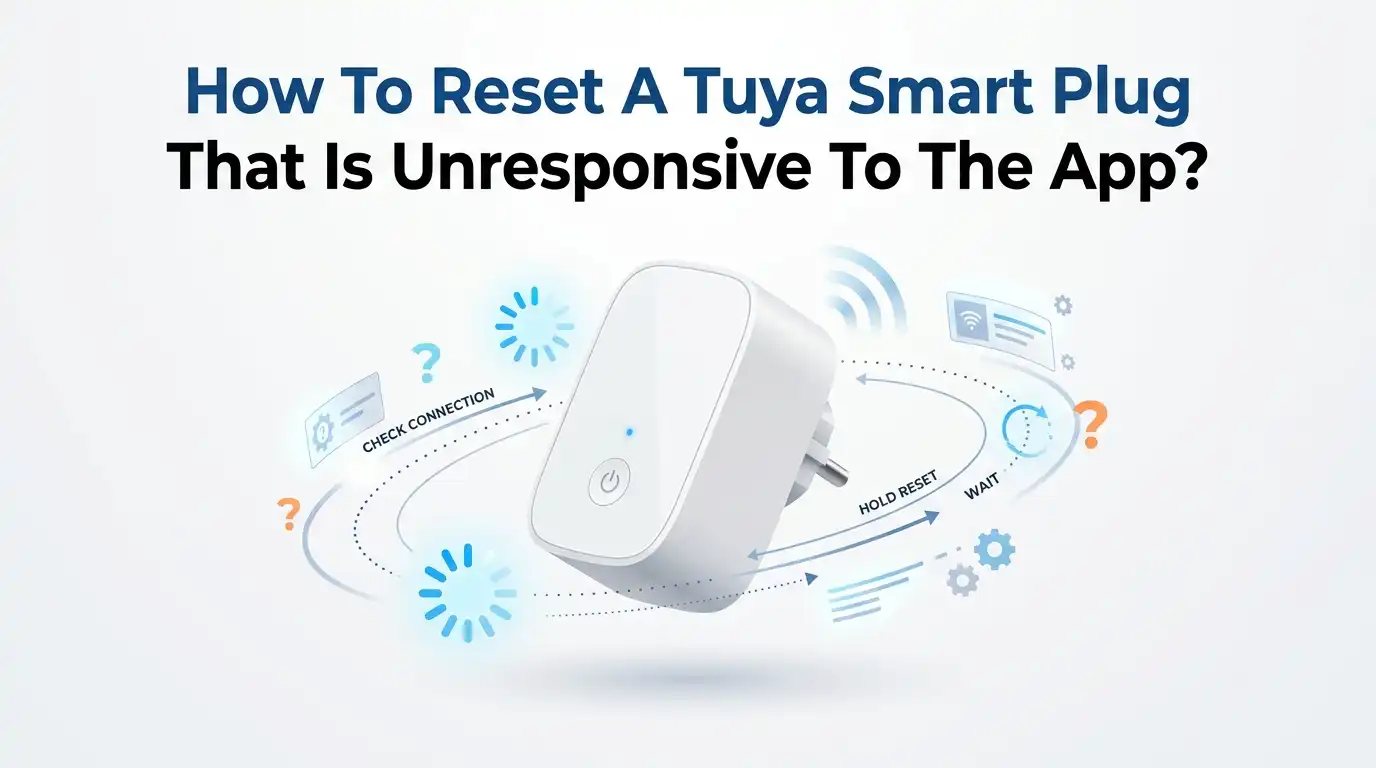
Press and hold this button for about five seconds. Watch the indicator light closely. The light starts blinking fast, around twice per second. This fast blink means the plug entered Quick Connect mode and cleared its old Wi-Fi memory.
Let go of the button once you see the rapid blink. Your plug is now ready to pair again in the app. If the light does not blink, hold the button a little longer, up to ten seconds, until it responds.
Pros: This method needs no app and works on nearly all models. Cons: It erases your settings, so you must pair the plug again afterward.
How To Switch Between EZ Mode And AP Mode During Reset
Tuya plugs offer two pairing modes, and knowing the difference saves you trouble. EZ mode shows a fast blink, around two blinks per second. It is quick and works well on simple home networks.
AP mode shows a slow blink, around one blink every three seconds. AP mode is the reliable backup when EZ mode keeps failing on mesh or combined networks. To switch modes, reset the plug to the fast blink first.
Then hold the button again for about five seconds until the light changes to a slow blink. Some plugs cycle: hold once for fast blink, hold again for slow blink. Pick AP mode if your router uses band steering or a mesh system. This small switch fixes many stubborn pairing failures.
Pros: AP mode bypasses many router broadcast issues. Cons: AP mode takes longer and asks you to join a temporary device hotspot.
How To Remove And Re-Add The Plug In The Tuya App
Sometimes the app holds a broken link to the plug. Removing the device and adding it back gives both a clean start. Open the Tuya or Smart Life app and tap the unresponsive plug.
Look for the pencil or settings icon in the top corner. Scroll to the bottom and tap “Remove Device.” You will see two choices: “Disconnect” or “Disconnect and wipe data.” Choose “Disconnect and wipe data” for a true fresh reset.
This step also puts most plugs back into pairing mode automatically. Now tap the plus sign to add a new device and follow the prompts. The app scans for nearby plugs in pairing mode. Once it finds your plug, name it and finish the setup.
Pros: This fixes app side glitches and stale data. Cons: You lose your timers, scenes, and automations, so you must rebuild them.
How To Reset The Plug When The Button Does Not Work
A few plugs have no button, or the button reset fails. Do not panic, because a power cycle pattern often replaces the button. Turn the plug off and on at the wall switch three or four times in a row. Wait one or two seconds between each toggle.
Many Tuya devices read this pattern as a reset command and start blinking. If your plug has a button that feels stuck, press it firmly and hold for a full ten seconds.
Try a different wall outlet, since a faulty socket can block the reset. For plugs with a tiny pinhole, use a paperclip and hold the inner button. If nothing works after several tries, the plug may have a hardware fault. In that case, check the warranty.
Pros: The power cycle trick works on buttonless models. Cons: The timing can be fussy, and it may take several attempts to get right.
How To Set Up Your Wi-Fi Correctly Before Pairing
Wi-Fi setup decides whether your reset actually fixes the problem. Tuya plugs only connect to the 2.4GHz band, never 5GHz. Open your router app and look at your network names. If your 2.4GHz and 5GHz share one name, your phone may jump to 5GHz mid setup and break the pairing.
Split the bands or create a separate 2.4GHz network just for smart devices. Name it something simple like “Home_IoT_2G.” Set the security to WPA2 with AES, since WPA3 only mode can block older plugs.
Use a short password with plain letters and numbers. Connect your phone to this 2.4GHz network before you start pairing. This single step prevents most “pairing failed” messages.
Pros: A clean 2.4GHz network solves the top cause of failed pairing. Cons: Splitting bands takes a few minutes and means managing two network names.
How To Prepare Your Phone For A Smooth Reset And Pairing
Your phone settings matter more than most people expect. Turn on Bluetooth, since many Tuya pairing flows use it to find nearby devices. Next, enable Location services and allow the Tuya or Smart Life app to access your location.
On Android, Wi-Fi scanning is tied to Location, so the app cannot find the plug without it. Turn off any VPN, Private DNS, or ad blocking app during setup, because these can block the handshake.
Disable Wi-Fi Assist or Smart Network Switch so your phone does not jump to mobile data. This jump often kills AP mode pairing. Keep your phone close to the plug and the router during the first connection. A strong signal during setup makes a big difference.
Pros: These tweaks remove hidden blockers and speed up pairing. Cons: You must remember to turn VPN and data switching back on later.
How To Pair The Plug Again Using AP Mode Step By Step
AP mode is the most reliable fallback when EZ mode fails. Use it on mesh systems or tricky routers. First, reset the plug and hold the button again until the light blinks slowly. Open the Tuya or Smart Life app and tap the plus sign to add a device.
Choose your plug type, then look for “AP Mode” or “Compatibility Mode” in the corner. Enter your 2.4GHz network name and password carefully.
The app then asks you to connect your phone to a hotspot named “SmartLife-XXXX” or “Tuya-XXXX.” Go to your phone Wi-Fi settings and join that hotspot. Return to the app and let it finish. The plug downloads your settings and comes online.
Pros: AP mode bypasses broadcast issues that break EZ mode. Cons: It is slower, and the hotspot step confuses first time users.
How To Stop Your Plug From Going Offline After A Reset
A plug that pairs but drops offline later points to network instability. Start by checking the plug signal in your router client list. A weak 2.4GHz signal makes the plug flap on and off.
Move the plug closer to the router for a test, or add an access point nearby. Next, create a DHCP reservation that binds the plug to a fixed IP address. This stops the “new IP, device offline” loop after the router renews leases.
Turn off AP isolation and band steering for your 2.4GHz network. These features block the local talk the plug needs. If your router runs in 802.11ax mode on 2.4GHz, switch it to mixed b/g/n for testing. Some plug chips do not handle ax well.
Pros: These fixes keep the plug online for months without drops. Cons: They require digging into router settings, which feels technical for some users.
How To Update Firmware To Prevent Future Reset Problems
Outdated firmware causes many odd plug behaviors. A quick update often fixes random offline issues for good. Open the Tuya or Smart Life app and tap your plug, then open the settings menu.
Look for “Device Update” or “Firmware Update.” If an update waits, tap it and keep the plug powered during the whole process. Do not unplug it mid update, or you risk bricking the device. You can also turn on automatic updates so the plug stays current on its own.
Update your app too, since an old app version can fail to talk to a new plug. Check your phone app store for the latest Tuya or Smart Life release.
Pros: Updates fix bugs and improve stability without any reset. Cons: A failed update can damage the plug, so a stable connection is a must.
How To Run A Final Test When All Else Fails
Sometimes you need to prove whether the plug or the router is at fault. A phone hotspot test isolates the problem in five minutes. Set your phone to share a 2.4GHz hotspot with a simple name like “Test_2G” and a basic password.
Reset the plug, then pair it to this hotspot using AP mode in the app. If the plug connects instantly and stays online, your router settings are the real issue. Go back and fix band steering, isolation, or security on your main network.
If the plug fails even on the clean hotspot, the fault lies in the plug firmware or hardware. In that case, contact the seller for a warranty replacement. This test removes the guesswork and saves hours of trial and error.
Pros: This test gives a clear yes or no answer about the plug health. Cons: Not every phone lets you force a 2.4GHz hotspot, which limits the test.
Frequently Asked Questions
How long do I hold the button to reset a Tuya smart plug?
Hold the power button for about five seconds until the light blinks fast. If nothing happens, keep holding up to ten seconds. The fast blink confirms the plug entered pairing mode and cleared its old Wi-Fi settings.
Why does my Tuya plug blink slowly instead of fast?
A slow blink, around one blink every three seconds, means the plug is in AP mode. This is the compatibility mode, not a fault. Hold the button again to switch between fast EZ mode and slow AP mode.
Will resetting my Tuya plug delete my timers and routines?
Yes. A factory reset wipes all timers, scenes, and automations tied to that plug. You must set them up again after you pair the plug. Note your routines first so you can rebuild them quickly.
Why does my Tuya plug keep going offline after I reset it?
This usually points to a weak 2.4GHz signal or unstable network settings. Add a DHCP reservation, turn off band steering, and disable AP isolation. Moving the plug closer to the router also helps it stay online.
Can I reset a Tuya plug without the app?
Yes. The button reset works without any app at all. Just hold the power button until the light blinks. You only need the app afterward to pair the plug back to your network.
Why will my Tuya plug not connect to my Wi-Fi?
Tuya plugs only use 2.4GHz Wi-Fi, not 5GHz. Make sure your phone joins a 2.4GHz network during setup. Combined networks, WPA3 only security, and VPNs are common reasons pairing fails.

Hi, I’m Rosie Tate — a tech enthusiast, gadget geek, and the creator of RapidConvertLab! 🚀 I’ve spent years exploring the ever-evolving world of electronics, smart devices, and Amazon’s hidden tech treasures. Through my honest, hands-on reviews, I help everyday shoppers cut through the noise and pick gadgets that truly deliver value. When I’m not testing a new device, I’m probably unboxing one! 📦✨