How To Fix A DisplayPort Connection That Randomly Drops Signal?
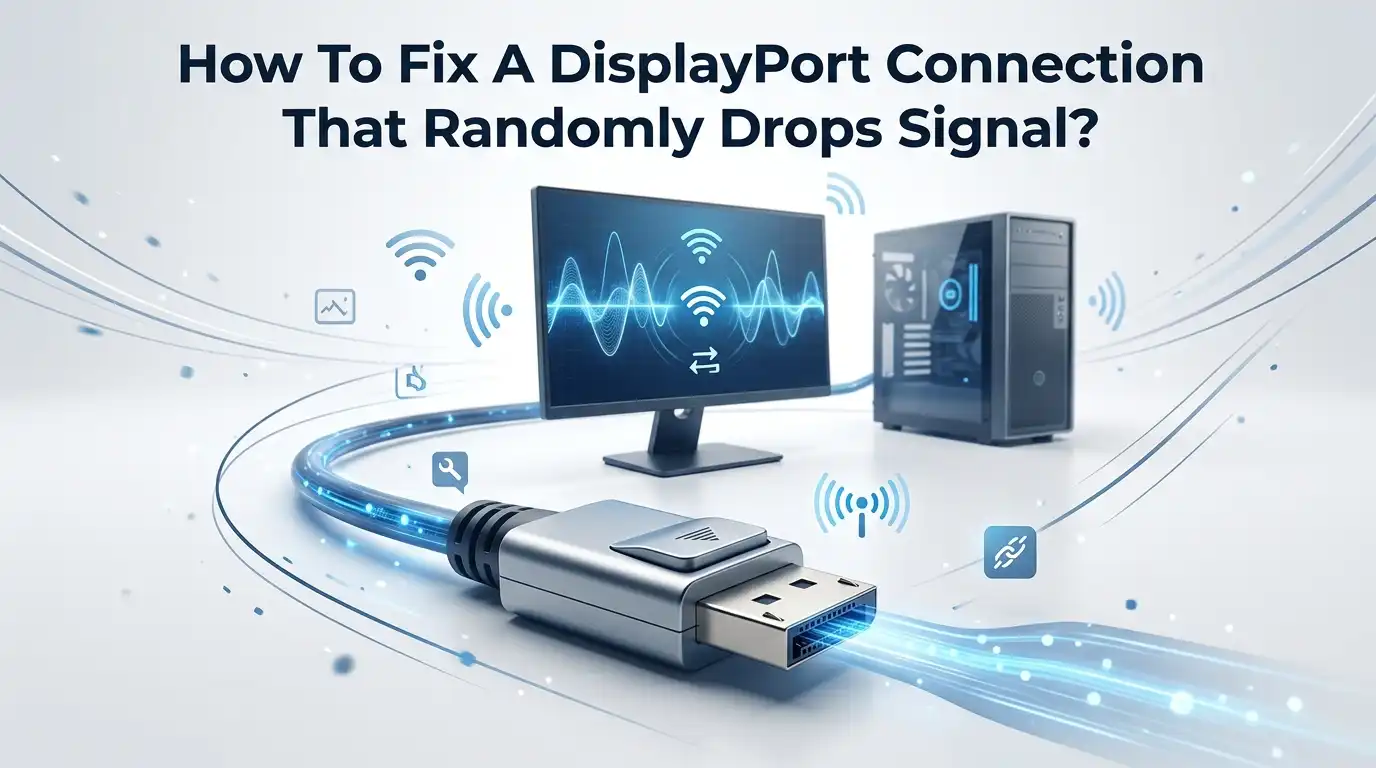
Your screen goes black for a second. Then it comes back. A few minutes later, it happens again. If you use a DisplayPort cable, this random signal drop is one of the most annoying problems you can face.
It interrupts your games, breaks your video calls, and ruins your focus during work. The good news is simple. Most DisplayPort signal drops have clear causes, and almost all of them are fixable at home.
This guide walks you through every reason your DisplayPort connection cuts out. You will learn quick fixes first, then deeper solutions for stubborn cases.
In a Nutshell:
- A cheap or damaged cable is the number one cause. A VESA certified DisplayPort cable fixes random drops more often than any other single change. Always start here.
- Power cycling clears stuck signals fast. Turn off the monitor, unplug both the power cable and the DisplayPort cable, wait five minutes, then plug everything back in.
- Outdated or broken GPU drivers trigger sudden blackouts. A clean driver reinstall removes corrupt files that cause signal loss.
- High refresh rate and resolution push the cable to its limit. Lowering the refresh rate tells you instantly if bandwidth is the real problem.
- DisplayPort Deep Sleep and G-Sync settings cause many flickers. Turning these off in your monitor menu or GPU panel stops the on and off blinking.
- A reseat and a port swap rule out loose or faulty connections. Push the cable in fully until it clicks, and test a second port if you have one.
What Causes A DisplayPort Signal To Drop Randomly?
A DisplayPort signal drop happens when your monitor loses sync with your graphics card. The screen goes black, shows a “No Signal” message, then recovers.
The cause is almost always one of five things. These are a faulty cable, a loose connection, a driver problem, a bandwidth overload, or a power saving feature.
DisplayPort carries a huge amount of data. A 4K screen at 144Hz pushes the cable hard. A weak cable cannot keep up, so it cuts out. Loose plugs break the data path for a split second.
Old drivers send bad instructions to the screen. Knowing the cause saves you time. You do not need to fix everything. You only need to find the one weak link in your setup and repair it.
Start With A Simple Cable Reseat And Inspection
Always begin with the easiest fix. A loose cable is a very common reason for random drops. DisplayPort plugs have a small latch that can wiggle free over time. Even a tiny gap breaks the signal.
Unplug the cable from both the monitor and the graphics card. Look at the metal pins inside the connector. Bent or dirty pins cause signal loss. Blow out any dust.
Then push the cable back in firmly until you hear or feel a click. Many DisplayPort plugs have a release button you must press to remove them, so do not yank hard.
Pros: This costs nothing and takes one minute. It fixes a large share of drops instantly.
Cons: It only helps if the connection was loose. A reseat will not fix a damaged cable or a driver fault.
Power Cycle Your Monitor The Right Way
A power cycle clears a stuck or confused signal state. This is one of the most reliable fixes for DisplayPort drops. Many users report it solves the problem completely.
Turn off your monitor. Then unplug both the power cable and the DisplayPort cable from the monitor. Wait at least five minutes. This step matters.
The wait lets the internal capacitors fully discharge, which resets the display electronics. Plug the power cable back in first, then the DisplayPort cable, then turn the screen on.
For some monitors, just unplugging power for ten seconds works too. A full cold reset clears the most stubborn signal faults.
Pros: It is free, safe, and very effective for sleep and wake issues.
Cons: The fix may be temporary if a deeper problem exists, such as a bad cable or driver.
Replace Your Cable With A VESA Certified One
If reseating and power cycling fail, the cable itself is the likely culprit. A poor quality cable is the single biggest cause of random DisplayPort drops. Cheap cables cannot carry enough bandwidth for high resolutions and refresh rates, so they cut out under load.
Look for a VESA certified DisplayPort cable that matches your needs. A DP 1.4 certified cable handles 4K at 120Hz and beyond. Certification means the cable passed real bandwidth tests. Uncertified cables often claim high specs they cannot deliver.
Keep the cable short if you can. Long runs lose signal strength. A two metre certified cable is safer than a five metre generic one.
Pros: A certified cable fixes the root cause for most people and lasts for years.
Cons: You spend a little money, and you must confirm the cable matches your monitor’s DisplayPort version.
Update Or Reinstall Your Graphics Card Drivers
Drivers tell your GPU how to talk to your monitor. Corrupt or outdated drivers cause sudden black screens and signal loss. This is very common right after a Windows update.
First, try updating. Open your GPU software, such as the Nvidia or AMD app, and install the newest driver. If drops continue, do a clean reinstall.
Use a tool like Display Driver Uninstaller in Safe Mode to remove every old file. Then install the latest driver fresh. A clean install removes broken leftovers that a normal update leaves behind.
You can also press Windows, Ctrl, Shift, and B together. This restarts the graphics driver instantly without a reboot.
Pros: This fixes drops caused by software, and it improves performance too.
Cons: The clean process takes time, and your screen may flash during the reinstall.
Lower Your Refresh Rate And Resolution To Test Bandwidth
High settings demand huge bandwidth. If your cable or port cannot keep up, the signal drops under load. This test tells you fast whether bandwidth is the issue.
Open your display settings in Windows. Lower the refresh rate first, for example from 144Hz down to 60Hz. Use the screen for a while. If the drops stop, your cable or port could not handle the higher rate. Next, you can try lowering the resolution too.
A stable screen at lower settings points straight to a bandwidth problem. The fix is then a better certified cable or a port that supports higher DisplayPort versions.
Pros: This is a free diagnostic that quickly narrows down the cause.
Cons: Lower settings reduce image smoothness, so this is a test, not a permanent solution for most users.
Turn Off DisplayPort Deep Sleep Mode
Many monitors have a power saving feature called DisplayPort Deep Sleep. This feature can cause the monitor to drop or fail to find the signal. It puts the DisplayPort circuit into a deep low power state, and sometimes the screen does not wake correctly.
Open your monitor’s on screen menu using the physical buttons. Look in the system or power settings. Find the option named DisplayPort Deep Sleep or DP Deep Sleep. Try turning it off. On some brands like Asus, the setting is clearly listed.
Disabling deep sleep often stops the no signal message after the PC wakes. It keeps the DisplayPort link active and ready.
Pros: It directly fixes wake from sleep drops, and the change is easy to make.
Cons: Your monitor may use slightly more power, and the menu location varies by brand.
Fix G-Sync And FreeSync Flicker And Drops
Adaptive sync features like G-Sync and FreeSync sync your refresh rate to your game. They can also cause flicker and full signal drops, especially when the frame rate swings up and down quickly.
Open your Nvidia or AMD control panel. Try turning G-Sync or FreeSync off to test if the drops stop. If they do, the feature is the cause. You can then cap your frame rate just below your monitor’s maximum, which often calms the flicker. Some monitors also have a firmware fix for this exact issue.
A frame rate cap keeps adaptive sync stable and stops the on and off blinking.
Pros: This removes a known cause of flicker and recovers smooth play.
Cons: Turning sync off brings back screen tearing, so a frame cap is the better long term choice.
Check And Update Your Monitor Firmware
Your monitor runs its own small software called firmware. Buggy firmware causes signal drops, flicker, and wake failures. Many brands release updates that fix these exact bugs.
Visit your monitor maker’s support page and search your exact model. Look for a firmware update file and its instructions.
Some monitors update through a USB cable connected to a port on the screen. Others use a special tool on your PC. Follow the steps carefully and never turn off the monitor during an update.
A firmware update often solves drops that no other fix can touch, because it repairs the monitor’s own logic.
Pros: It fixes deep monitor bugs and can add new features.
Cons: Not every monitor offers updates, and a failed update can harm the screen if interrupted.
Test A Different Port, Cable, And Computer
This step finds exactly where the fault lives. You swap one part at a time to isolate the broken piece. It removes all guessing from the process.
First, plug the cable into a different DisplayPort port on your graphics card if you have one. Then try a different known good cable. If you can, connect your monitor to a second computer or laptop. If the drops follow the cable, the cable is bad. If they follow the monitor, the monitor is the problem.
This method is the most certain way to confirm the cause before you spend any money.
Pros: It gives a clear, definite answer about which part has failed.
Cons: You need spare parts or a second device, which not everyone has on hand.
Adjust Power Settings In Windows
Windows power plans can put your graphics hardware to sleep too aggressively. This causes the screen to drop signal during idle moments. Tuning these settings keeps your display awake and stable.
Open Power Options in the Windows control panel. Set your plan to High Performance or change the advanced settings. Turn off “Turn off the display” timers while you test.
Also disable USB selective suspend, since some monitors use USB for their DisplayPort link. Switch off fast startup too, because it sometimes leaves the display in a bad state after boot.
These tweaks stop Windows from cutting power to parts that your display needs.
Pros: It fixes idle and wake drops without any hardware change.
Cons: High performance mode uses more energy, which matters on a laptop running on battery.
Rule Out A Failing Graphics Card Or Monitor
If you tried everything above and the drops continue, the hardware itself may be failing. A dying graphics card or monitor often shows random signal loss as an early sign. This is the last thing to check, since hardware repair costs the most.
Watch for other clues. Artifacts, strange colours, or drops that get worse over time point to a failing GPU. Drops that happen only on DisplayPort but not HDMI can mean a damaged DisplayPort port on the card or screen.
Test the monitor and card separately on other devices to confirm. If one fails everywhere, that part needs repair or replacement.
Pros: It identifies serious faults so you stop wasting time on small fixes.
Cons: Hardware repair or replacement is the most expensive route of all the options here.
Frequently Asked Questions
Why does my DisplayPort keep saying “No Signal” but HDMI works fine?
This usually means the DisplayPort cable, port, or driver has a fault, while HDMI uses a different path. Start with a power cycle and a certified cable swap. Unplug the DisplayPort cable and power for five minutes, then reconnect. If it still fails on DisplayPort only, the DP port or cable is the likely cause.
Does a longer DisplayPort cable cause more signal drops?
Yes, it can. Longer cables lose signal strength over distance. A long cheap cable struggles to carry high bandwidth, which leads to random drops at 4K or high refresh rates. Keep the cable as short as your setup allows, and choose a VESA certified one for any run over two metres.
Can a Windows update cause DisplayPort signal loss?
Yes. Windows updates sometimes install or change graphics drivers, which can break the DisplayPort link. The fix is to do a clean driver reinstall using a removal tool, then install the latest driver fresh. A power cycle of the monitor after the update often helps too.
Is DisplayPort or HDMI better for avoiding signal drops?
Both are reliable when the cable is good. DisplayPort handles higher refresh rates better, which is why gamers prefer it. However, it is more sensitive to weak cables and sleep settings. A quality certified cable and correct settings make DisplayPort just as stable as HDMI.
Will turning off G-Sync stop my screen from flickering?
Often, yes. G-Sync and FreeSync can cause flicker and drops during rapid frame rate changes. Turning the feature off in your GPU control panel confirms if it is the cause. A better long term fix is to cap your frame rate just below your monitor’s maximum, which keeps the image smooth without tearing.
How long should I wait when power cycling my monitor?
Wait at least five minutes with both the power and DisplayPort cables unplugged. This lets the internal parts fully discharge and reset. A short ten second unplug works for minor issues, but a full five minute cold reset clears the most stubborn signal faults and wake from sleep problems.

Hi, I’m Rosie Tate — a tech enthusiast, gadget geek, and the creator of RapidConvertLab! 🚀 I’ve spent years exploring the ever-evolving world of electronics, smart devices, and Amazon’s hidden tech treasures. Through my honest, hands-on reviews, I help everyday shoppers cut through the noise and pick gadgets that truly deliver value. When I’m not testing a new device, I’m probably unboxing one! 📦✨