Why Is My Monitor Stuck In Power Saving Mode And Won’t Wake Up?
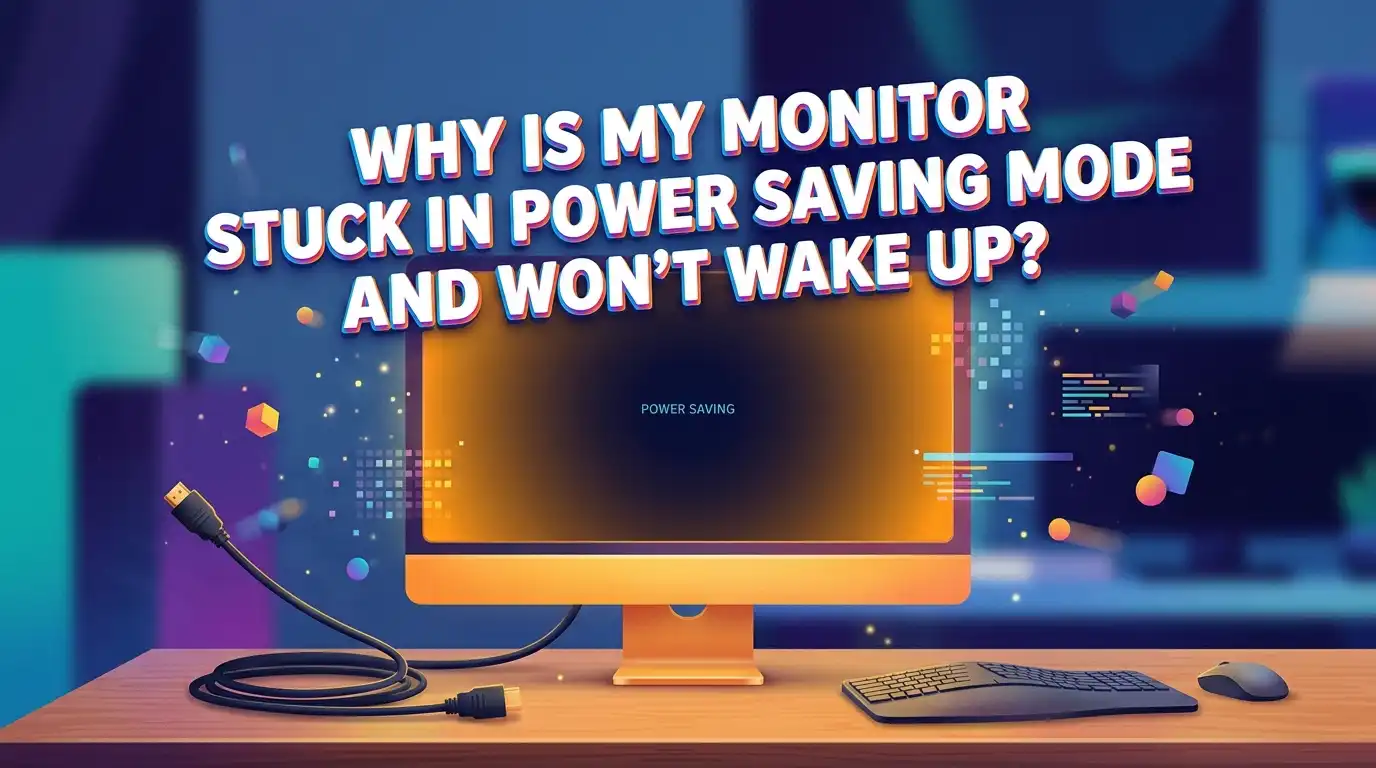
Your computer is humming, the fans are spinning, but your screen sits black with a glowing message that says “Power Saving Mode.” You tap a key. Nothing. You jiggle the mouse. Still nothing.
It feels like the monitor has fallen asleep and refuses to wake up. The good news is simple. This problem is almost always fixable at home, and you rarely need to buy a new monitor.
In most cases, your monitor is fine. It just stopped receiving a video signal from your computer. This guide walks you through every cause and every fix in plain steps.
Key Takeaways
- Power saving mode usually means “no signal.” Your monitor has power, but it is not getting a video feed from your PC, laptop, dock, or graphics card. The screen is waiting, not broken.
- A loose or wrong cable is the most common cause. Reseating both ends of your HDMI, DisplayPort, or USB-C cable fixes a huge number of cases right away.
- The graphics driver is the second biggest culprit. Pressing Win + Ctrl + Shift + B restarts your display driver instantly and often wakes a frozen screen.
- Check the input source on the monitor menu. HDMI 1, HDMI 2, DisplayPort, and USB-C are not the same. Picking the wrong one leaves you staring at a black screen.
- Work from simple to complex. Start with cables and buttons, then move to drivers, power settings, and last of all the hardware inside your PC.
- Test your monitor on a second device. If it works elsewhere, your monitor is healthy and the problem lives in your computer or cable.
What Power Saving Mode Actually Means On Your Monitor
Power saving mode is a low energy standby state. Your monitor switches to it when it stops receiving a usable video signal.
The screen still has power, which is why the light glows, but it has nothing to display. This is important. The monitor is not necessarily broken. It is simply waiting for your computer to send it a picture.
This is why pressing the monitor power button again and again rarely helps. That button only wakes the screen itself, not the device feeding it video. The real fix is to restore the signal from your PC, laptop, console, or graphics card.
Once a proper signal returns, the monitor leaves standby on its own and shows your desktop. Understanding this one idea saves you hours of frustration and points you straight at the true cause.
First Check If The Computer Is Asleep Or Frozen
Start with the easiest test. Move your mouse firmly and press a key like the spacebar or Enter. If your computer was simply asleep, this should wake it and the screen should return within a few seconds.
If nothing happens, press the power button on your PC once, briefly. Do not hold it down, because holding it forces a shutdown.
Listen and watch closely. Are the fans spinning loudly? Are the lights on? A running computer with a black screen is a different problem from a computer that has fully crashed.
If pressing the power button once makes the system stir and the screen pops back, your PC was in deep sleep or hibernation. If the screen stays black while the machine clearly runs, the video signal is the issue, and the next steps will target that directly.
Reseat And Inspect Every Cable
Cables are the number one cause of this problem, so give them real attention. Unplug the video cable from both ends, the monitor side and the computer side, then firmly push them back in.
A DisplayPort or HDMI cable can look connected while sitting slightly loose. That tiny gap is enough to cut the signal and trigger power saving mode.
Check the cable for bends, frayed spots, or bent pins. A damaged cable often works one day and fails the next. If you have a spare cable, swap it in and test. This single step solves a surprising number of cases.
Pros: Fast, free, and fixes the most common cause with zero technical skill.
Cons: A spare cable is not always on hand, and a faulty internal connector can mimic a bad cable, which makes the result less certain.
Confirm You Selected The Correct Input Source
Your monitor has several input ports, and it only shows the one you choose. If your computer connects through HDMI 2 but the monitor is set to HDMI 1 or DisplayPort, you will see power saving mode even though everything else works fine. Open the monitor’s on screen menu using the small buttons on the front, side, or bottom edge.
Look for a setting called Input, Source, or Signal. Cycle through each option slowly and pause on the one that matches your cable. HDMI, DisplayPort, USB-C, and VGA are all separate choices.
Many modern monitors offer auto input switching, which usually helps but can sometimes hunt between sleeping devices and feel stuck.
Turning auto switching off and choosing the input manually gives you reliable control. This fix costs nothing and takes under a minute, yet people overlook it constantly.
Restart The Graphics Driver With A Keyboard Shortcut
This is one of the cleanest fixes for a frozen display, and Windows users should try it early. Press Win + Ctrl + Shift + B all at once. This shortcut restarts your graphics driver without touching your open programs or files. You may hear a short beep, and the screen may flicker or go black for a second before returning.
If your screen wakes after this, your graphics driver was the problem, not your monitor. That clue matters for the next steps. This trick works because a crashed or stuck display driver often leaves the monitor with no signal, which sends it to standby.
Pros: Instant, safe, and keeps your work open with no shutdown needed.
Cons: It only helps with driver related freezes, and if the driver keeps crashing, you still need to update or reinstall it for a lasting fix.
Use The Win + P Display Mode Trick
Sometimes your computer gets stuck between display modes, especially after using a TV, projector, dock, or second monitor.
Windows may be sending the picture to a screen that is not even connected. Press Win + P, then press P again, then press Enter. Repeat this slowly a couple of times if needed.
This cycles through the projection modes named PC screen only, Duplicate, Extend, and Second screen only. One of these settings usually points the image back to your active monitor.
This fix shines for laptop users who recently plugged into a meeting room screen or a docking station. Because you are working blind on a black screen, go slow and deliberate.
Give the system two or three seconds between each press so it has time to switch modes before you move on.
Power Cycle The Whole System To Clear Stuck States
When small fixes fail, a full power cycle often clears a stuck hardware state. This drains leftover electricity from the system and forces a fresh start. Shut down the computer fully, then unplug it from the wall. For laptops, remove the charger too.
Now hold the power button down for about 20 to 30 seconds while everything is unplugged. This empties residual power from the motherboard and components. Plug it back in and start the machine. Do the same with the monitor by unplugging it for a full minute before reconnecting power.
Pros: Clears frozen states that software fixes cannot reach, and it works without any technical knowledge.
Cons: It interrupts whatever you were doing, and if the problem returns quickly, the real cause lies deeper in drivers or hardware.
Update, Roll Back, Or Reinstall The Graphics Driver
If restarting the driver helped even briefly, the driver itself needs proper attention. A bad or outdated graphics driver is a frequent reason monitors will not wake. Download the latest driver straight from your graphics maker or your PC maker, then install it. Avoid random driver sites.
If the trouble started right after a recent update, the new driver may be the problem. In that case, open Device Manager, find Display adapters, right click your graphics card, and choose Roll Back Driver to return to the version that worked.
For stubborn cases, uninstall the driver completely through Control Panel, restart, then install a clean copy.
Booting into Safe Mode helps here, because Safe Mode loads a basic display driver. If the monitor wakes fine in Safe Mode but fails normally, software or drivers are the cause, not your panel.
Adjust Your Power And Sleep Settings In Windows
Power saving is helpful, but aggressive settings can shut your screen off at bad moments and refuse to wake cleanly. Open Settings, go to System, then Power, and find the screen and sleep timers. Set them long enough to match how you actually work.
Someone who watches dashboards, renders video, or sits through long meetings needs longer screen off times than a shared office terminal.
For laptops with an external monitor, check the lid close behavior too. You can keep the laptop running with the lid shut when it is plugged in and connected to a screen, but the power plan must allow it.
Look for the Allow Wake Timers option and enable it if your system keeps dropping to standby. Tuning these settings stops unwanted blackouts without disabling every energy saving feature blindly.
Lower The Resolution, Refresh Rate, And Turn Off HDR
Your monitor can refuse a signal it cannot handle, which sends it straight to power saving mode. This often happens after you change the refresh rate, switch on HDR, enable variable refresh rate, or add a dock. A high refresh 4K or ultrawide display demands far more bandwidth than a standard 60 Hz screen.
Reduce the signal demand first. Set the refresh rate to 60 Hz, turn HDR off, and use the native resolution. If the monitor wakes reliably at 60 Hz but fails at 144 Hz, your cable, dock, or port is the weak link.
Not every cable carries high bandwidth, and not every USB-C port supports video output through DisplayPort Alt Mode.
Confirm that your USB-C port actually handles video, since some only charge or move data. Rebuilding the signal at lower demand isolates the bottleneck quickly and safely.
Test The Monitor And Cable On Another Device
This step gives you a clear answer about whether your monitor is healthy. Connect your monitor to a completely different computer, laptop, or console using a cable you trust.
If the screen works on that device, your monitor is doing its job perfectly. The problem then lives in your original computer, its graphics card, or the cable you used before.
If the monitor enters power saving mode on every device you try, the display itself may be failing. You can also flip the test and plug a known good monitor into your problem computer.
Pros: Removes all guesswork and tells you exactly where the fault sits before you spend money.
Cons: You need a second device or a spare monitor handy, which not everyone has at home.
Check For Deeper Hardware Problems Inside The PC
If the screen shows power saving mode before the maker’s logo or BIOS screen even appears, your operating system is not the first suspect.
No image during startup points to the graphics card, RAM, motherboard, power supply, or monitor input board. Watch closely when you power on to see whether any splash screen appears at all.
If you are comfortable opening a desktop, unplug it first, then reseat the graphics card and RAM by removing and firmly reinstalling them.
Dust and heat can interrupt video output, especially in gaming PCs under heavy load. When the screen drops only during games, treat it as a load failure. Lower the game settings, disable overclocks, and watch GPU temperatures.
A screen that loses signal mid match may be reacting to a driver crash, overheating, or a power supply that cannot handle the spike.
When To Replace A Cable, Dock, Or Monitor
After all the steps above, you can make a smart replacement choice instead of guessing. Replace the cable first if the problem is intermittent, started after you moved your desk, or only appears at high refresh rates. Cables are cheap and fail more often than people expect.
Bypass or replace the dock if the monitor works when connected straight to your laptop but fails through the dock. The dock, not the monitor, is then the broken link. Investigate the graphics card if the screen dies under load or if the driver restart shortcut keeps reviving it.
Replace the monitor only as a last resort, after it fails on a second known good computer with a good cable and the correct input chosen. A monitor that works on another source does not need replacing. One that fails everywhere likely has a dying power board or input board.
Frequently Asked Questions
Why does my monitor say power saving mode when my PC is clearly on?
Your monitor has power but is not getting a usable video signal. The PC may be asleep, the wrong input may be selected, the cable may be loose, the dock may have failed to reconnect, or the graphics driver may have crashed. Work through cables, input source, and the driver restart shortcut first.
Is it safe to disable monitor power saving completely?
Yes, Windows lets you disable it, but there are tradeoffs. Turning it off prevents annoying blank screens during long idle periods. However, it raises energy use and reduces protection against static image wear on some panels. A balanced setting with longer timers is usually the smarter choice than switching it off entirely.
Why does this happen more with gaming monitors?
Gaming monitors run higher refresh rates, adaptive sync, HDR, and higher bandwidth signals. These features boost performance, but they also make weak cables, outdated drivers, hot graphics cards, and marginal docks easier to expose. Lowering the refresh rate to 60 Hz during troubleshooting often confirms whether the signal demand is the cause.
My monitor wakes in Safe Mode but not normally. What does that mean?
That points to software or your graphics driver, not a broken panel. Safe Mode loads a basic display driver, so if it works there, reinstall or roll back your main graphics driver. Also check startup programs and any overclocking utilities, since these can interfere with how the display wakes.
Could a bad power supply cause this?
Yes, especially when the screen drops to power saving mode during demanding games or heavy rendering. A power supply that cannot handle sudden load spikes may cause the graphics card to lose output briefly. If lowering game settings and disabling overclocks stops the problem, the power supply or GPU under load deserves a closer look.
Final Thoughts
A monitor stuck in power saving mode looks scary, but it rarely means a dead screen. Almost every time, the cause is a missing video signal somewhere along the chain. Treat it like detective work and move in order: source, cable, input, driver, dock, then the display itself. Start with the simple stuff you can see and touch, like cables and the input menu. Then move to the driver restart shortcut and power settings. Save the hardware checks for last. Follow this path and you will fix the screen most of the time without spending a cent on new parts. Your desktop is usually just one good signal away from coming right back.

Hi, I’m Rosie Tate — a tech enthusiast, gadget geek, and the creator of RapidConvertLab! 🚀 I’ve spent years exploring the ever-evolving world of electronics, smart devices, and Amazon’s hidden tech treasures. Through my honest, hands-on reviews, I help everyday shoppers cut through the noise and pick gadgets that truly deliver value. When I’m not testing a new device, I’m probably unboxing one! 📦✨