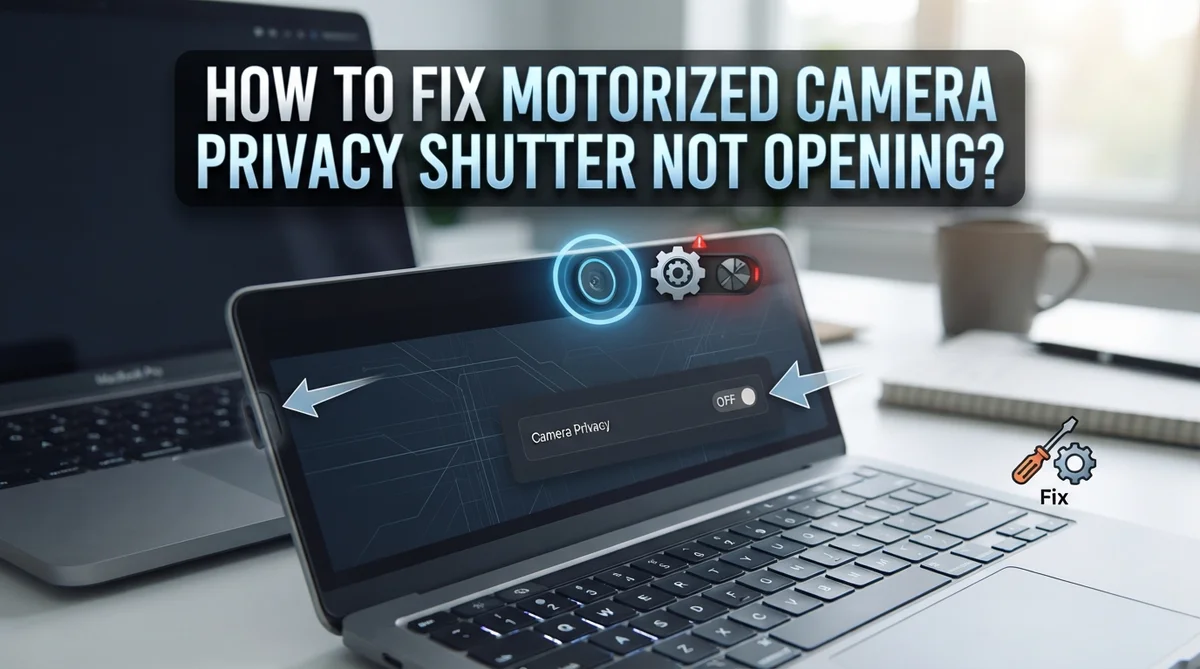
How To Fix Motorized Camera Privacy Shutter Not Opening?
Your camera shows a black screen. You think your webcam is broken. But wait, the real problem might be simpler than you think.
Motorized privacy shutters are handy little tools. They protect your privacy when you are not on camera. But sometimes, they get stuck and refuse to open.
This can be frustrating, especially before an important video call. You might panic and think you need a repair or replacement. Most of the time, that is not true.
The issue is often just a setting or a small mechanical hiccup. It could be a locked slider, a blocked sensor, or a privacy setting turned off in your system.
In a Nutshell
- Check the slider first. Most privacy shutters have a small switch on the top edge of your device. Slide it left to open the shutter and restore your camera view.
- Look at your privacy settings. Go to Settings > Privacy > Camera and make sure apps have permission to access your camera. This step fixes many “black screen” problems.
- Reset the shutter setting. Turn the privacy shutter option off and then back on. This simple reset often clears small glitches in the motor system.
- Inspect for physical blocks. Dust, dirt, or small debris can jam the shutter blades. A quick blast of compressed air can clear this out.
- Update your firmware. Outdated software sometimes causes shutter bugs. Check for updates to fix these hidden issues.
- Avoid common mistakes. Do not assume your camera is broken. Most of the time, it is just a closed shutter or a setting waiting to be switched on.
Understanding How Motorized Privacy Shutters Work
A motorized privacy shutter works by using a small electric motor to slide a physical barrier in front of your camera lens. When you activate the shutter, the motor receives a signal and moves metal or plastic blades to block the camera view completely.
The slider mechanism sits on the top edge of your device. You move it left or right to trigger the motor. This action sends power to the motor, which then pushes or pulls the shutter blades into position.
Why this matters for troubleshooting: The shutter has three main parts that can fail. First, the slider itself can get stuck or damaged. Second, the motor can lose power or stop working. Third, the blades can jam from dust or debris buildup.
When the shutter closes, your camera still functions normally. Your device simply cannot see anything. This is why you see a black screen on video calls. The camera is working fine, but the barrier blocks all light from reaching the sensor.
The motor draws power from your device’s battery. It only uses electricity when you move the slider. This means a dead battery won’t cause shutter problems unless power is completely drained.
Understanding the connection: Your operating system communicates with the motor through software. Settings in your privacy menu tell the motor when to open or close. If this software connection breaks, the motor won’t respond even though it works fine.
Some devices also have a manual override option. You can sometimes move the slider by hand if the motor fails. This backup feature helps you access your camera even during motor problems.
Identifying the Symptoms: Black Screen vs Camera Malfunction
When your motorized camera privacy shutter won’t open, the first step is figuring out what’s actually wrong. Many people panic thinking their camera broke, but the real culprit is often something simple.
A black screen display doesn’t always mean your camera failed. The closed shutter itself creates this black appearance. Your camera lens sits behind the physical barrier, so when the shutter blocks it, you see darkness on screen. This is actually the shutter doing its job correctly.
To tell the difference between a stuck shutter and a real camera malfunction, try these checks. First, look at the slider on your device’s top edge. If it’s in the closed position, that explains the black screen. Move it gently to the left. If the screen clears up, your camera works fine.
Next, check your device’s privacy settings. Go to Settings, find Privacy, then Camera. Make sure apps have permission to access your camera. Sometimes the operating system blocks camera access even when the shutter opens physically.
Here’s the key distinction: A mechanical problem means the shutter slider won’t move at all or moves but doesn’t slide smoothly. A software problem means the shutter moves but your camera apps still show black or say “camera unavailable.”
If the slider moves freely and your privacy settings allow camera access, but you still see black, then a real camera malfunction might exist. However, this scenario happens less often than people think.
Start by assuming the issue is simple. Most motorized shutter problems stem from closed sliders or disabled privacy permissions, not hardware failure.
Manually Checking and Sliding the Shutter Open
Start by locating the privacy shutter slider on your device. Most cameras have this small switch positioned on the top edge of your laptop or monitor. Look carefully along the edges to find it.
Once you spot the slider, gently push it to the left. This motion should open the shutter and reveal your camera lens. Move slowly and steadily to avoid forcing any components.
If the slider won’t budge, don’t apply excessive force. Pushing too hard can damage the internal mechanism. Instead, stop and inspect the slider area closely for any visible obstructions.
Check for dust or debris around the slider track. Small particles often accumulate in this space over time. Use compressed air to gently blow away any loose material from the edges and crevices.
Wipe the slider with a soft, dry cloth. Sometimes sticky residue or buildup prevents smooth movement. A gentle cleaning often restores normal function without any additional steps.
Try moving the slider again after cleaning. Slow, deliberate movements work better than quick jerks. You should feel it glide smoothly across the track when everything works properly.
If the slider moves but the shutter doesn’t open completely, stop and assess the situation. The internal blades might be misaligned or stuck. Don’t force it further, as this could cause permanent damage.
Listen for any grinding or unusual sounds while moving the slider. Strange noises suggest mechanical problems inside the housing. This indicates you may need professional assistance rather than continued manual attempts.
Once your shutter opens, verify that your camera lens is now visible. You should see the glass lens element clearly without any obstruction. Test your camera in a video call to confirm it’s working properly.
Verifying Operating System and Privacy Settings
Your operating system controls whether apps can access your camera. Even if your motorized shutter opens physically, your device’s privacy settings might still block camera access. This is why checking your OS settings comes first.
Start by opening your Settings app. Look for a Privacy or Security section. Most devices group camera permissions here. You need to find the Camera access option. This setting controls which apps can use your camera hardware.
Check if camera access is turned on. The toggle should show as enabled. If it’s disabled, your camera won’t work even with the shutter open. Turn it on if needed. Then wait a few seconds for the change to take effect.
Next, look for a specific privacy shutter setting. Some devices have a dedicated toggle for the motorized shutter. This might be labeled as “Camera Privacy Shutter” or “Shutter Control.” Make sure this setting is enabled too.
If you still see a black screen, try disabling and re enabling the camera privacy shutter setting. Turn it off completely. Wait ten seconds. Then turn it back on. This simple reset often fixes software glitches that prevent the shutter from responding.
Check which apps have camera permission. Go to your app permissions list. Remove camera access from apps you don’t use. Then grant permission only to apps that actually need it.
Restart your device after making these changes. A full restart helps your operating system apply the new settings properly. This forces all privacy controls to refresh and communicate with the motorized shutter motor.
Step-by-Step Fix for a Stuck or Unresponsive Shutter
When your motorized camera privacy shutter refuses to open, a systematic approach works best. Start with the simplest solution first.
Locate the physical slider on your device’s edge, usually positioned above the camera lens. Gently push it to the left using steady, even pressure. Many users apply too much force, which can damage the mechanism. If the slider moves smoothly but the shutter remains closed, note this for later troubleshooting.
Listen carefully while moving the slider. Grinding sounds or resistance suggests a mechanical problem. Stop immediately if you hear these noises.
Next, inspect the slider track for dust or debris. Use compressed air to blow away any particles blocking the mechanism. Wipe the slider and surrounding area with a soft, dry cloth. Attempt to move the slider again after cleaning.
If the slider won’t move at all, check your device’s Settings app. Navigate to Privacy and locate your Camera settings. Verify that apps have permission to access the camera. Sometimes the software locks the physical shutter when privacy settings are too restrictive.
Disable the camera privacy shutter setting completely, wait 10 seconds, then re-enable it. This action often resets the motor connection and resolves unresponsiveness.
Restart your entire device after making these changes. The reboot allows your operating system to reinitialize communication with the shutter motor.
If the slider now moves freely and you see your camera lens clearly, the issue is resolved. Test your camera app to confirm video and photos display normally.
When nothing works, avoid forcing the slider further. Excessive pressure causes permanent damage to internal components. At this point, your device may need professional service.
Inspecting for Physical Obstructions and Debris
Physical obstructions and debris are common culprits behind a motorized camera privacy shutter that won’t open. Dust, lint, and small particles can accumulate in the slider track over time, preventing smooth movement.
Start by examining the shutter slider track carefully. Look along the edges where the slider moves left and right. You’ll often spot visible dust or debris buildup in these tight spaces. Use a flashlight if needed to see into the track clearly.
Gently clean the slider track using compressed air. Hold the can upright and use short bursts to dislodge particles. Direct the air along the entire length of the track, pushing debris out from both ends. Avoid tilting the compressed air can, as this can release liquid.
Next, wipe down the slider itself with a soft, dry cloth. Gently rub both the top and sides of the slider to remove any dust film. Pay special attention to the edges where the slider contacts the track walls.
Check the camera lens area for obstructions too. Sometimes debris accumulates around the lens opening itself, which can make the shutter appear closed even when it’s actually open. A soft brush or cloth works well for this gentle cleaning.
After cleaning, test the slider movement again. Move it slowly from left to right and back. Listen for any grinding sounds, which would indicate remaining debris or mechanical damage. The slider should move smoothly without resistance.
If the slider moves freely after cleaning but the camera still shows black, the issue likely isn’t physical obstruction. Move forward with checking your device’s software settings and camera permissions to identify the real problem.
Updating Firmware and Software to Resolve Shutter Bugs
Firmware updates often fix bugs that prevent your motorized camera privacy shutter from opening properly. Your device’s camera software controls how the motor responds to your commands. When bugs exist in this software, the shutter motor may not receive signals correctly, leaving your shutter stuck in the closed position.
Start by checking your device manufacturer’s website for available camera firmware updates. Most devices allow you to update firmware through the Settings app. Navigate to Settings, then look for “System” or “Device” options. Find the section labeled “About” or “System Updates.” Your device will show if updates are available for download.
Before updating, connect your device to a strong WiFi network. Firmware updates require stable internet and may take several minutes to complete. Plug in your device’s power adapter too. Do not interrupt the update process, as this can cause serious problems.
Once the update finishes, restart your device completely. This allows the new firmware to fully activate. After restarting, test your camera privacy shutter by moving the slider. Listen for the motor sound and check if the shutter opens smoothly.
If updating doesn’t work, check for app specific updates as well. Your camera app may have its own software version separate from device firmware. Open your app store and search for camera app updates. Install any available updates and restart your device again.
Some users report that updating both device firmware and camera app software together resolves stubborn shutter issues. If your shutter still won’t open after these updates, the problem likely involves hardware failure rather than software bugs.
Common Mistakes to Avoid When Troubleshooting
When troubleshooting a motorized camera privacy shutter that won’t open, avoid these common mistakes that waste your time and delay the fix.
Don’t assume your camera is broken. Many people think their camera hardware failed when the shutter is simply closed. A black screen on your display doesn’t mean the camera is damaged. Check if the physical slider is in the closed position first. Move it to the open position and test again before investigating deeper issues.
Skip checking software settings initially. People often focus on hardware problems and ignore the operating system controls. Your device has privacy settings that override the physical shutter. Visit Settings, then Privacy, then Camera. Verify that apps can access your camera. These software blocks prevent the camera from working even when the shutter opens physically.
Don’t neglect the physical slider itself. Some users try complex software fixes without inspecting the actual shutter mechanism. Dust and debris accumulate in the slider track over months of use. Before diving into firmware updates or app reinstalls, spend two minutes cleaning the track with compressed air. This simple step solves most shutter problems.
Avoid forcing the slider. If the shutter won’t budge, don’t push harder. Applying force can damage the motor or crack the mechanism permanently. Instead, disable and re-enable the camera privacy shutter setting in your device settings. Wait a few seconds between each action. This resets the motor without causing mechanical damage.
Never skip the restart step. After making any software changes, restart your device completely. Many users make adjustments but forget to restart, then assume the fix didn’t work. A full restart applies all changes and resets the camera system properly.
Final Thoughts
A closed camera shutter feels like a big problem. But most of the time, it has a simple fix.
Start with the easy checks first. Look for the slider on your device edge. Move it left to open the shutter fully.
Next, check your privacy settings. Go to Settings, then Privacy, then Camera. Make sure apps have permission to use your camera.
If the slider feels stuck, clean it gently. Compressed air removes dust and debris fast. Never force the mechanism open.
Firmware updates fix many hidden bugs too. Check your manufacturer’s website often. Keep both your device and camera apps updated.
Software settings cause more issues than people think. Many users blame hardware first. But a simple setting change often solves the problem.
Remember to disable and re-enable your camera privacy shutter setting. This small reset works surprisingly well. It clears minor glitches without any technical skill.
For apps like SimpliSafe, check the app settings separately. Some devices need permission granted in two different places. Your operating system and the app both need access.
If you tried everything and the shutter still won’t open, the motor might have failed. Mechanical failure needs professional repair. Don’t attempt to disassemble the camera yourself.
Patience helps during this process. Work through each step calmly. Rushing often leads to more damage.
Most privacy shutter problems get fixed at home. You rarely need expensive repairs. A few minutes of troubleshooting usually solves the issue.
Keep your device clean and your software updated. This prevents future shutter problems. Your camera will work smoothly again soon.
Frequently Asked Questions
Why does my camera show a black screen when the shutter is closed?
A black screen usually means your privacy shutter is simply closed. This is actually the shutter doing its job correctly. Many people mistake this for a broken camera. Check the top edge of your device for a small slider. Move it left to open the shutter. Your camera should work normally once you slide it open.
How do I enable camera access in my device settings?
Go to Settings on your device. Find Privacy or Security options. Look for Camera permissions. Make sure the toggle that says “Allow apps to access your camera” is turned on. Some devices require you to enable this for specific apps individually. Check both your main system settings and individual app settings to ensure camera access is fully enabled.
What should I do if the physical slider feels stuck?
Stop immediately. Do not force the slider as you might damage the mechanism. Instead, use compressed air to gently clean around the slider edges. Let the air remove any dust or debris blocking movement. Wait a few minutes, then try moving the slider slowly. If it remains stuck after cleaning, the motor may need professional repair.
Can disabling and re-enabling the camera setting fix the shutter?
Yes, this simple step resolves many issues. Go to your device Settings. Navigate to Privacy and find Camera. Toggle the camera access off. Wait 10 seconds. Turn it back on. This resets the connection between your software and the motorized shutter. Restart your device afterward for best results.
What if nothing works and the shutter still won’t open?
The motor inside may have failed. This requires professional repair or replacement. Contact your device manufacturer’s support team. They can diagnose whether the motor needs service. Keep your warranty information handy when reaching out.

Hi, I’m Rosie Tate — a tech enthusiast, gadget geek, and the creator of RapidConvertLab! 🚀 I’ve spent years exploring the ever-evolving world of electronics, smart devices, and Amazon’s hidden tech treasures. Through my honest, hands-on reviews, I help everyday shoppers cut through the noise and pick gadgets that truly deliver value. When I’m not testing a new device, I’m probably unboxing one! 📦✨