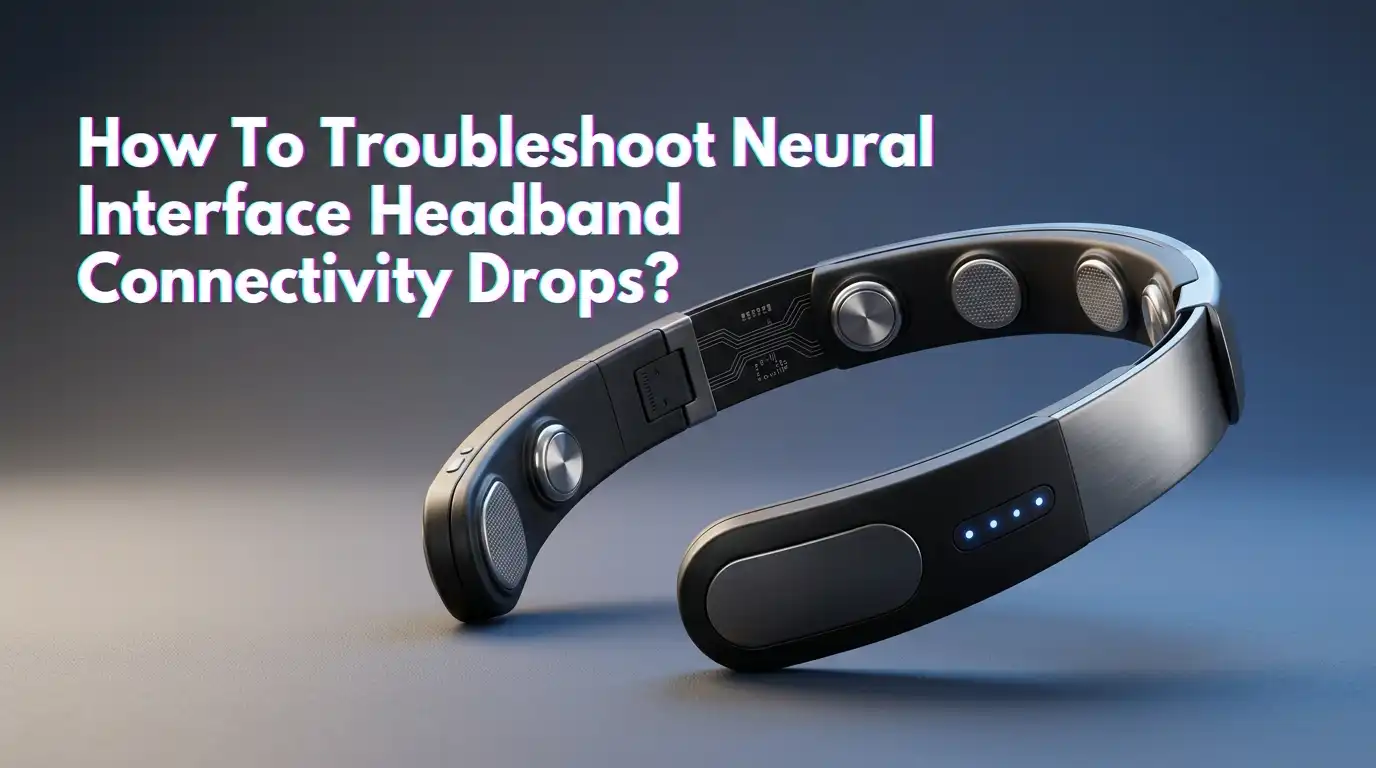
How To Troubleshoot Neural Interface Headband Connectivity Drops?
You sat down for a focused meditation session or an important brain training exercise. Your neural interface headband connected just fine. Then, two minutes in, the signal dropped. The app lost connection.
Your session data vanished. This is one of the most common frustrations for anyone who uses a neural interface headband, whether it is a Muse, EMOTIV, OpenBCI, Neurosity Crown, or any other EEG based wearable.
This guide walks you through every common cause of neural interface headband connectivity drops. You will find clear, step by step solutions for each one. No guesswork. No vague advice. Just practical answers that work.
In a Nutshell
- Bluetooth interference is the most frequent cause of connectivity drops. Devices like Wi-Fi routers, cordless phones, baby monitors, and microwave ovens share the same 2.4 GHz frequency band as your headband. Moving away from these sources often solves the problem instantly.
- Low battery levels cause unstable connections. A neural interface headband that drops below 20% battery often struggles to maintain a steady Bluetooth signal. Always charge your device fully before a session and unplug it before connecting, since many headbands cannot pair while plugged in.
- Firmware and app updates matter more than most users realize. Outdated software creates pairing conflicts and signal interruptions. Manufacturers regularly release patches that fix known connectivity bugs, so keeping both your headband firmware and companion app current is a critical step.
- Poor electrode contact creates signal loss that mimics connectivity drops. Your headband may still be connected via Bluetooth, but if the sensors cannot read your brain signals due to hair, dry skin, or a loose fit, the app may report a disconnection. Dampening your forehead and adjusting the fit can solve this.
- Your phone or tablet settings can block the connection without warning. Battery optimization features, location services, and Bluetooth permission settings on both iOS and Android can silently interrupt the link between your headband and its app. Checking these settings should be one of your first troubleshooting steps.
- Environmental and physical factors play a bigger role than expected. Room temperature, head movement, skin products, and even the number of active Bluetooth devices nearby can each contribute to signal instability. A calm, clutter free environment gives your headband the best chance of maintaining a solid connection.
Why Does Your Neural Interface Headband Keep Disconnecting
Neural interface headbands rely on Bluetooth Low Energy (BLE) to send brainwave data from the sensors on your head to a companion app on your phone or computer. This wireless link is fast and power efficient, but it is also sensitive to disruption.
The electrical signal your brain produces is extremely weak. We are talking about 10 to 100 microvolts at the scalp. That is roughly 2.5 billion times weaker than a static shock from a doorknob. Your headband’s sensors must detect this tiny signal while surrounded by electrical noise from power lines, screens, and other wireless devices.
A connectivity drop can mean two different things. It can mean the Bluetooth link between the headband and your device broke. Or it can mean the sensor signal became too noisy for the app to use, even though Bluetooth remained active.
Understanding which type you are experiencing helps you choose the right fix. If your app shows “device disconnected,” the issue is Bluetooth. If it shows “poor signal” or sensors turning red, the issue is electrode contact.
Check Your Bluetooth Settings First
The simplest fix is often the right one. Start by confirming that Bluetooth is properly set up on your phone or tablet. Many neural interface headbands connect directly through their companion app, not through your device’s general Bluetooth settings page.
Turn off Bluetooth on your phone completely. Wait at least 10 seconds. Turn it back on. This clears the pairing cache, which can become corrupted over time. Then open your headband’s app and try to connect from there.
On Android devices, make sure location services are enabled. Android requires location permissions for BLE scanning. Without it, the app cannot find your headband. On iOS, check that Bluetooth permissions are granted specifically for the headband app in your phone’s Settings menu under Apps.
Pros: This takes under a minute and fixes a surprising number of connection issues.
Cons: It does not help if the problem is hardware related or caused by interference.
Remove Sources of Wireless Interference
Bluetooth operates on the 2.4 GHz ISM band. This same frequency band is used by Wi-Fi routers, cordless phones, baby monitors, wireless cameras, and microwave ovens. All of these devices create electromagnetic noise that can disrupt the BLE connection between your headband and your phone.
Move at least 3 meters away from your Wi-Fi router when using your headband. If your microwave is running, wait until it finishes. Turn off any nearby Bluetooth speakers, wireless keyboards, or other BLE devices that might compete for bandwidth.
One effective test is to enable Airplane Mode on your phone, then turn Bluetooth back on manually. This disables Wi-Fi and cellular radios, which removes two major sources of interference. If your headband connects reliably in Airplane Mode, you know that wireless congestion was the culprit.
Pros: Dramatically reduces signal interference and improves connection stability.
Cons: Airplane Mode disables internet access, which some companion apps need for cloud features.
Charge Your Headband Fully Before Each Session
A low battery is one of the most overlooked causes of connectivity drops. When your neural interface headband’s battery drops below 20%, the Bluetooth radio may not receive enough power to maintain a stable connection. The headband might connect briefly and then disconnect repeatedly.
Charge your headband for at least 3 hours using a USB wall charger that delivers a maximum of 5V and 2A. Higher voltage chargers may not be compatible and can cause charging issues with some models. Always unplug your headband after charging before you try to connect, because many devices like the Muse cannot establish a Bluetooth link while plugged in.
Check your companion app for a battery indicator. If you notice that disconnections happen more often toward the end of sessions, battery drain during use is likely the cause. Shorter, more frequent sessions can help until you develop a reliable charging routine.
Pros: Simple habit that prevents a wide range of connectivity problems.
Cons: Requires planning ahead and does not fix issues caused by other factors.
Update Your Firmware and Companion App
Outdated firmware on your headband or an old version of the companion app can create pairing conflicts. Manufacturers push updates specifically to fix known Bluetooth bugs and improve connection stability. For example, Muse released hotfix v51.1 specifically to address widespread connection failures that users reported.
Open your app store and check for updates to the companion app. Then open the app and look for a firmware update option in the settings menu. Let the firmware update complete without interrupting it. A failed firmware update can leave your headband in a broken state that requires a factory reset.
If a recent update caused your connectivity problems, check the manufacturer’s support forum or subreddit. Other users may have reported the same issue, and a fix or workaround might already be available. Sometimes rolling back to a previous app version is the temporary solution while a patch is developed.
Pros: Fixes software bugs that no amount of hardware troubleshooting can solve.
Cons: Firmware updates carry a small risk of failure, and some updates may introduce new issues.
Improve Electrode Contact for Better Signal
Many users confuse a poor sensor signal with a Bluetooth disconnection. Your headband may still be wirelessly connected to your phone, but if the EEG sensors cannot make proper contact with your skin, the app will report signal loss or drop the session.
Use a damp cloth or wet fingers to moisten your forehead and the areas where the sensors touch your skin. This small amount of water greatly improves electrical conductivity between the electrode and your skin. The dead outer layer of your skin, called the stratum corneum, has high electrical resistance. Water bridges this gap.
Remove any hair trapped between the sensors and your scalp. Hair acts as an insulator and creates air gaps that raise impedance.
For headbands with ear sensors, make sure the sensors sit on the skin at the top of your ears, not on top of hair. Tighten the fit until snug, but not uncomfortably tight. Wait 6 to 15 seconds between adjustments to let the signal settle.
Pros: Addresses the root cause of many perceived “connectivity drops.”
Cons: Requires repeating before every session, especially in dry climates.
Avoid Skin Products and Cosmetics During Sessions
Lotions, sunscreen, makeup, and hair products create a non conductive barrier between your skin and the headband’s EEG sensors. Even a thin layer of moisturizer on your forehead can significantly raise electrode impedance, which degrades signal quality and causes the app to report connection issues.
Wash your forehead and the skin around your ears with plain water before putting on your headband. Avoid oil based cleansers that leave a residue. A clean scalp is a conductive scalp, and normal hygiene goes a long way toward consistent signal quality.
If you use your headband for morning meditation, try putting it on before applying your skincare routine. If you use it at night, a quick rinse of the sensor contact areas is enough. This small habit eliminates one of the more frustrating and hard to diagnose causes of signal drops.
Pros: Completely within your control and costs nothing.
Cons: May require adjusting your personal care routine around headband use.
Restart Your Devices in the Right Order
When basic fixes do not work, a proper restart sequence often does. The order matters. First, force close the companion app on your phone. Do not just minimize it. Swipe it away completely. Second, turn off Bluetooth on your phone and wait 10 seconds. Third, power off your headband completely and wait 10 seconds.
Now reverse the process. Turn your headband on first. Then turn Bluetooth back on your phone. Then open the companion app and initiate the connection from within the app. This sequence ensures that the headband is broadcasting before your phone starts scanning, which avoids timing conflicts in the BLE handshake.
If this does not work, restart your phone entirely. Then repeat the connection process. Some users find that restarting the phone twice in a row resolves persistent pairing issues that a single restart cannot clear.
Pros: Clears cached connection data and resolves most software based pairing failures.
Cons: Takes a few minutes and interrupts your session flow.
Manage Battery Optimization Settings on Your Phone
Modern smartphones aggressively manage background processes to save battery. This includes killing or throttling apps that maintain Bluetooth connections. Your neural interface app may lose its BLE link because your phone’s operating system decided it was using too much power in the background.
On Android, go to Settings, then Apps, find your headband’s companion app, and disable battery optimization for that specific app. On iOS, go to Settings, then the app name, and make sure Background App Refresh is enabled. Also check that the app is not restricted under Low Power Mode settings.
Some Android phones from Samsung, Xiaomi, and Huawei have additional battery management layers beyond stock Android. These can be especially aggressive. Look for features called “Adaptive Battery,” “App Power Management,” or “Battery Saver” and add your headband app to the exception list.
Pros: Prevents the operating system from silently killing your Bluetooth connection.
Cons: May slightly increase battery drain on your phone.
Reduce the Distance Between Headband and Device
Bluetooth Low Energy has a typical range of about 10 meters in open air. Walls, furniture, and your own body can reduce this range significantly. If your phone is across the room or in another pocket, the signal may fluctuate enough to cause intermittent drops.
Keep your phone or tablet within 1 to 2 meters of your headband during sessions. Place it on a table in front of you, not behind you or inside a bag. Your body contains a lot of water, which absorbs radio signals. If the phone is behind your back, your body blocks the Bluetooth signal path between the headband and the device.
Avoid placing your phone on top of metal surfaces or near large metal objects. Metal reflects and distorts Bluetooth signals, creating dead zones. A wooden table or a fabric surface is ideal for phone placement during a session.
Pros: Easy to implement and instantly improves connection reliability.
Cons: Limits your physical freedom during sessions.
Inspect Your Headband for Physical Damage
Over time, neural interface headbands experience wear and tear. Sensor coatings degrade. Electrode surfaces accumulate oils and residue. Fabric bands stretch and lose their ability to hold sensors firmly against your skin. Connector cables or pods can develop hairline cracks that cause intermittent disconnections.
Examine the electrode surfaces regularly. If they appear discolored, scratched, or coated in residue, clean them according to the manufacturer’s instructions. Most electrodes can be gently wiped with a damp cloth. Do not use alcohol or abrasive cleaners unless the manual specifically says to, as these can damage conductive coatings.
Check that all physical connections are secure. Some headbands like the Muse S have a pod that attaches to a fabric band. If this connection has a gap or is not seated properly, both sensor signal and Bluetooth performance suffer. If your headband is more than two years old and you use it daily, the electrodes may need replacement.
Pros: Identifies hardware problems that no software fix can resolve.
Cons: Physical damage may require contacting the manufacturer or purchasing replacement parts.
Reset Your Headband to Factory Settings
When nothing else works, a factory reset clears all stored pairing information and returns the headband to its original state. This eliminates corrupted settings, broken firmware configurations, and stuck connection profiles that accumulated over time.
Check your manufacturer’s documentation for the exact reset procedure. It varies by device. Some headbands require holding a button for 10 seconds. Others need a specific button combination. The Muse headband, for example, can be reset through the companion app’s settings menu.
After the reset, you will need to pair the headband with your device again from scratch. Remove the old headband entry from your phone’s Bluetooth settings before re pairing. This prevents conflicts between the old and new connection profiles.
Pros: Resolves deeply embedded software issues that survive normal restarts.
Cons: Erases all stored preferences and requires full re setup.
Create a Consistent Pre Session Routine
Prevention beats troubleshooting every time. The most reliable way to avoid connectivity drops is to follow the same preparation steps before every session. This takes less than two minutes and catches most problems before they interrupt your experience.
Start by charging your headband the night before. Unplug it in the morning. Wash or dampen the skin where the sensors will sit. Part any hair away from sensor contact points. Put the headband on and adjust the fit. Open the companion app and check the signal quality display. Wait 60 seconds for the electrodes to settle and for your skin’s natural moisture to form a conductive film.
Keep your phone close, reduce wireless clutter in the room, and close unnecessary apps on your phone. This routine sounds like a lot written out, but in practice it becomes second nature after a few sessions. The payoff is clean, uninterrupted data every time.
Pros: Prevents the vast majority of connectivity issues before they start.
Cons: Requires discipline and a few extra minutes before each session.
When To Contact the Manufacturer
If you have tried every step in this guide and your headband still drops connectivity, the issue may be a hardware defect. Contact the manufacturer’s support team with specific details: your device model, firmware version, phone model, operating system version, and a description of when the drops occur.
Document the pattern of your disconnections. Do they happen at a specific time during sessions? Do they occur only with certain session types? Does the headband work with a different phone? This information helps the support team diagnose the problem faster.
Most manufacturers offer warranty coverage for hardware defects within the first year. Some offer extended support plans. If your headband is still under warranty and you suspect a defect, do not attempt to open or repair it yourself, as this typically voids the warranty.
Frequently Asked Questions
Why does my neural interface headband disconnect during meditation sessions?
The most common cause is poor electrode contact combined with subtle head movements. During meditation, small shifts in posture can move the sensors just enough to break skin contact. Dampening the sensor areas with water and tightening the fit before your session reduces this significantly. Bluetooth interference from nearby devices is the second most likely cause.
Can Wi-Fi interfere with my neural headband’s Bluetooth connection?
Yes. Both Wi-Fi and Bluetooth operate on the 2.4 GHz frequency band. A Wi-Fi router close to your session area can create enough interference to cause Bluetooth drops. Moving at least 3 meters from your router or enabling Airplane Mode on your phone and then turning Bluetooth back on can solve this problem.
How often should I update my headband’s firmware?
Check for updates at least once a month. Manufacturers release firmware patches to fix known Bluetooth bugs, improve sensor algorithms, and add new features. Always update the companion app at the same time, because mismatched versions between firmware and app software can cause connectivity issues.
Does hair type affect neural headband connectivity?
Hair itself does not affect Bluetooth connectivity, but it strongly affects sensor signal quality. Thick, curly, or dense hair creates insulating gaps between the electrodes and your scalp. This raises electrode impedance and degrades the EEG signal. Parting your hair at sensor contact points and moistening the skin underneath improves performance significantly.
Why does my headband work fine on one phone but not another?
Different phones have different Bluetooth hardware, antenna designs, and operating system configurations. Some Android phones have aggressive battery optimization that kills background Bluetooth connections. Older phones may lack support for the latest BLE protocols. Check that your phone meets the minimum requirements listed by the headband manufacturer, and disable battery optimization for the companion app.
How long should I charge my neural interface headband before a session?
A full charge of at least 3 hours is recommended for most neural interface headbands. Use a charger that delivers a maximum of 5V and 2A. Avoid fast chargers that deliver higher voltages, as they may not be compatible with your headband’s charging circuit. Always unplug before attempting to connect via Bluetooth.

Hi, I’m Rosie Tate — a tech enthusiast, gadget geek, and the creator of RapidConvertLab! 🚀 I’ve spent years exploring the ever-evolving world of electronics, smart devices, and Amazon’s hidden tech treasures. Through my honest, hands-on reviews, I help everyday shoppers cut through the noise and pick gadgets that truly deliver value. When I’m not testing a new device, I’m probably unboxing one! 📦✨