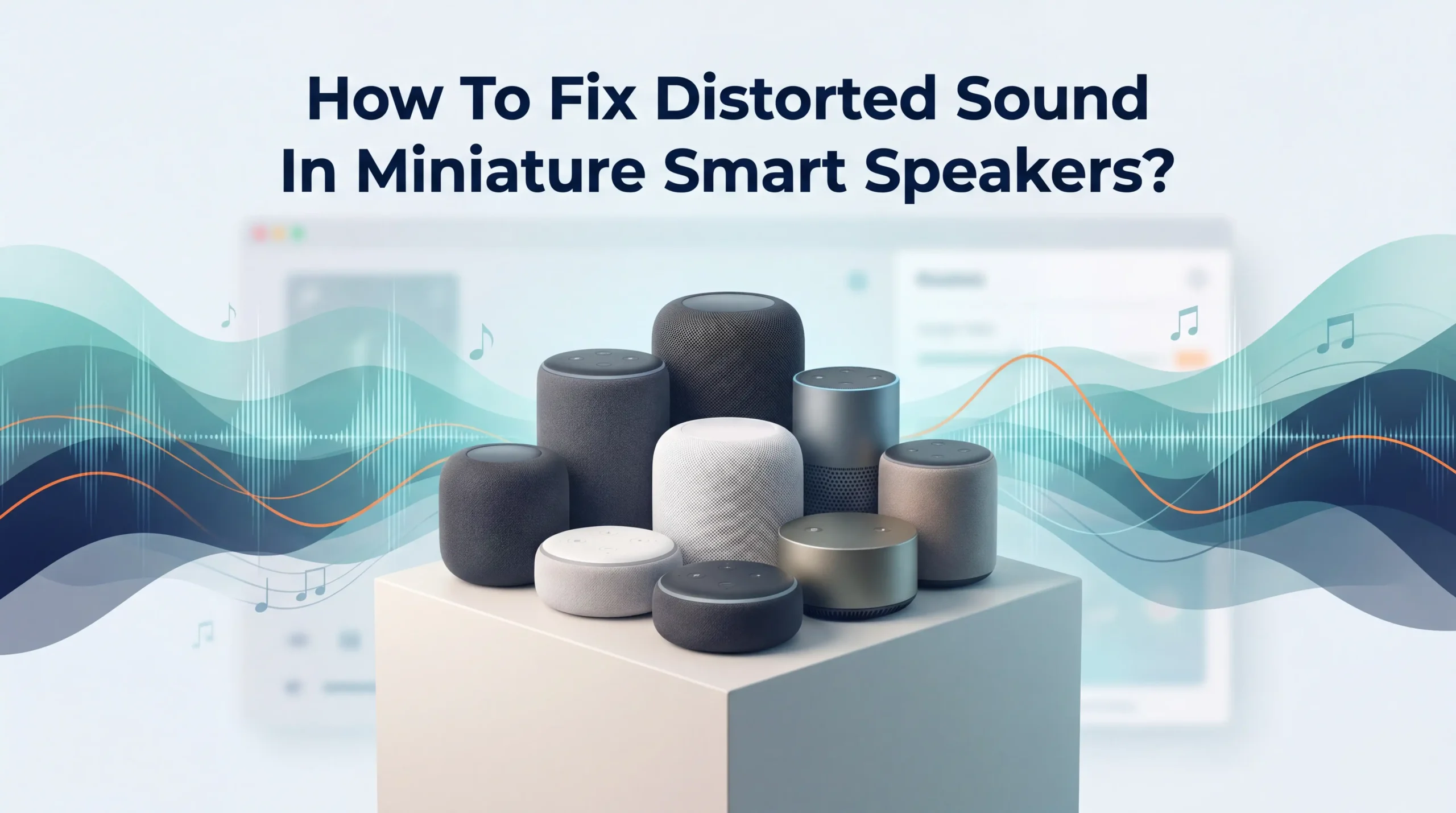
How To Fix Distorted Sound In Miniature Smart Speakers?
Your tiny smart speaker plays your favorite song. But instead of clean music, you hear crackling, buzzing, or muffled noise. It feels frustrating. You bought the speaker for good sound, and now it disappoints you every time you press play.
The good news is simple. Most distortion problems have easy fixes. You do not need to be a tech expert. You do not need special tools either. Many issues come from dust, wrong settings, or a weak connection.
This guide walks you through every common cause. You will learn step by step solutions that actually work. Each method comes with clear pros and cons.
Key Takeaways
- Distortion often starts small. Dust in the grille, a wrong volume level, or a loose connection causes most problems. Check these first before you try anything complex.
- Lower your volume before you blame the speaker. Pushing tiny speakers past their limit creates clipping. This is the top reason for crackling sound in small devices.
- A simple restart fixes many bugs. Turning the speaker off and on clears temporary software errors. This trick works more often than people expect.
- Clean the speaker grille gently. Trapped dust and moisture block sound waves. A soft brush or a dry cloth removes them and restores clarity.
- Update the firmware and reset when stuck. Software updates fix audio glitches. A factory reset solves deeper issues when nothing else helps.
- Hardware damage needs repair or replacement. If the sound stays broken after every step, the internal driver may be blown. Contact support at this stage.
Understand Why Your Smart Speaker Sounds Distorted
First, you need to know what causes the problem. Distortion happens when sound waves do not travel cleanly from the speaker. Many things can trigger this. The cause could be software, hardware, or your environment.
Common reasons include pushing the volume too high, dust blocking the grille, a weak Bluetooth or WiFi signal, and outdated software. Sometimes the audio source itself is bad. A low quality file will sound rough on any speaker.
Miniature speakers face extra challenges. Their small drivers cannot handle heavy bass or loud volume. So they distort faster than big speakers do.
Knowing the root cause saves you effort. Once you spot the pattern, you pick the right fix. The next sections cover each cause one by one, so you fix things in the correct order.
Lower The Volume To Stop Clipping
The most common cause of distortion is too much volume. Small speakers have tiny drivers. When you push them past their limit, the sound signal clips. This creates that harsh crackling noise you hear.
To test this, play a song and slowly lower the volume. If the distortion fades, you found the problem. Keep your speaker below 80 percent volume for clean sound. Many mini speakers sound best between 50 and 70 percent.
You can also lower the volume on your phone or app. Then raise it on the speaker instead. This balance often gives clearer audio. Try both methods and compare.
Pros: This fix is free and instant. It also protects your speaker from long term damage.
Cons: You get lower maximum loudness. This may not suit large rooms or parties where you want stronger sound.
Restart Your Smart Speaker To Clear Bugs
A simple restart fixes many audio glitches. Software errors build up over time. These bugs sometimes affect how your speaker processes sound. A quick reboot clears them out.
To restart, unplug the speaker from power. Wait about 30 seconds. Then plug it back in and let it boot up fully. Some models have a power button you can hold instead.
After the restart, play a test song. Check if the distortion is gone. This method works surprisingly often because it refreshes the device memory. It costs you nothing but a minute of time.
Pros: Restarting is fast, easy, and safe. It keeps all your settings intact. Anyone can do it without tech skills.
Cons: The fix may be temporary. If a deeper bug or hardware fault exists, the distortion will return after some time.
Clean The Speaker Grille And Remove Dust
Dust builds up on the speaker grille over time. This layer blocks sound waves and creates muffled or distorted audio. Small speakers sit on desks and shelves, so they collect dust fast.
Grab a soft brush or a clean dry toothbrush. Gently sweep across the grille. Do not push hard or use liquids. Water can damage the internal parts. For stubbon dust, use a can of compressed air from a short distance.
If moisture is the issue, let the speaker dry in a warm, dry spot. Never use a hairdryer on high heat. Too much heat harms the driver.
Pros: Cleaning is cheap and improves sound clarity right away. It also extends the life of your speaker.
Cons: It only helps if dust is the real cause. Deep internal blockage may need professional cleaning or a full teardown.
Check Your Bluetooth Or WiFi Connection
A weak wireless connection causes audio to stutter and distort. Your smart speaker relies on a steady signal. When that signal drops, the sound breaks up. Distance and interference are the main culprits.
Move your speaker closer to the router or your phone. Keep it away from other electronics like microwaves and cordless phones. These devices crowd the 2.4 GHz band and cause interference.
If your router supports it, switch to the 5 GHz WiFi band. This band faces less traffic and gives smoother audio. For Bluetooth, turn off nearby devices that compete for the connection.
Pros: Fixing the connection removes stutter and dropout. Your audio streams cleanly with no lag.
Cons: Moving closer limits where you can place the speaker. Some older speakers only support 2.4 GHz, so you cannot switch bands.
Adjust The Equalizer And Bass Settings
Wrong equalizer settings often cause distortion. Many people boost the bass too high. Small speakers cannot handle heavy bass. This overload makes the sound crackle and buzz, especially at loud volume.
Open your speaker app and find the EQ or sound settings. Lower the bass level and reduce any extreme boosts. Set the equalizer to a flat or balanced profile. Then test your audio again.
If your app offers presets, try the “voice” or “balanced” mode. These modes suit tiny drivers better. A gentle EQ keeps the sound clean and natural.
Pros: EQ tuning gives you control over your sound. You fix distortion while keeping decent volume.
Cons: You may lose deep bass punch. Not every mini speaker offers EQ controls, so this option depends on your model.
Test With A Different Audio Source
Sometimes the speaker is fine, but the audio source is the problem. A low quality music file or a poor streaming connection sounds rough on any device. Always rule out the source before you blame the speaker.
Play a high quality song from a different app or device. Try a streaming service known for good audio. Then switch to a downloaded file. Compare the results carefully.
If the sound is clear from one source but distorted from another, the source was the issue all along. You can also test with a wired connection if your speaker supports it.
Pros: This test quickly tells you where the fault lies. It saves you from trying pointless fixes on a healthy speaker.
Cons: It takes a few extra minutes to test each source. You need access to more than one app or device to compare.
Update The Firmware Of Your Smart Speaker
Outdated firmware causes many audio bugs. Manufacturers release updates to fix these glitches. An old software version may be the reason your speaker sounds bad. Keeping it current often solves the problem.
Open the companion app for your speaker. Look for a device settings or about section. Check if an update is available. If yes, install it while the speaker stays connected to power.
Do not unplug the speaker during the update. This can corrupt the software and cause bigger problems. Let the process finish completely. The speaker may restart on its own after.
Pros: Updates fix known bugs and improve overall performance. They are free and often add new features too.
Cons: Updates take time and need a stable connection. In rare cases, a bad update introduces new issues that need a reset to fix.
Move The Speaker Away From Hard Surfaces
Where you place your speaker matters a lot. Hard surfaces and corners reflect sound in odd ways. This creates echo, rattle, and false distortion. The speaker may sound worse than it really is.
Move your speaker to an open spot. Keep some space around it. Avoid placing it against a wall or inside a tight shelf. A little breathing room improves the sound quality.
Vibrations also cause buzzing. If your speaker sits on a thin desk, it may rattle at high volume. Place a soft mat or cloth underneath. This absorbs the vibration and cleans up the sound.
Pros: Better placement is free and takes seconds. It improves clarity without any settings changes.
Cons: You may have limited space at home. Some rooms simply lack a good open spot for the speaker.
Perform A Factory Reset On The Speaker
When nothing else works, a factory reset is your next step. This erases all settings and returns the speaker to its original state. It clears deep software bugs that cause distortion. Think of it as a fresh start.
Each brand has its own reset method. Most speakers use a button combo or a long press. Check your manual or the maker’s support page for exact steps. Follow them carefully.
After the reset, set up the speaker again from scratch. Reconnect it to WiFi and your app. Then test the sound. Many stubborn problems disappear after this.
Pros: A reset fixes issues that simple steps miss. It gives you a clean, bug free system.
Cons: You lose all your saved settings and routines. Setting everything up again takes time and patience.
Check For Hardware Damage Or A Blown Driver
If distortion stays after every fix, the hardware may be damaged. A blown driver is a common cause. This happens when the speaker cone tears or wears out from overuse or high volume.
Signs of a blown driver include constant buzzing, rattling, or crackling at all volume levels. The sound stays broken no matter what you do. This is a physical problem, not a software one.
Inspect the speaker for cracks or water damage. If you dropped it recently, an internal part may have come loose. Handle it gently during inspection.
Pros: Spotting hardware damage saves you from wasting time on software fixes. You know the real cause.
Cons: Hardware repair is harder and may cost money. Some mini speakers are sealed and cannot be opened easily.
Contact Support Or Consider A Replacement
Sometimes the smart choice is to seek help. If your speaker is still under warranty, contact the manufacturer. They may repair or replace it for free. This saves you money and stress.
Explain the problem clearly. Tell them the steps you already tried. This helps the support team give you a faster solution. Keep your purchase receipt ready in case they ask for proof.
If the speaker is old and out of warranty, weigh the cost of repair against a new unit. Sometimes replacement makes more sense for small, cheap speakers.
Pros: Support can fix issues you cannot solve at home. Warranty claims cost you nothing.
Cons: Repairs take time and shipping. Out of warranty fixes may cost more than the speaker is worth.
Prevent Future Distortion With Good Habits
Once you fix the sound, keep it clean with simple habits. Prevention is easier than repair. A few small steps protect your speaker for years.
Keep the volume at a safe level most of the time. Avoid maxing it out for long periods. Clean the grille every few weeks to stop dust buildup. Store the speaker in a dry place away from moisture.
Update the firmware when new versions arrive. Handle the speaker with care and avoid drops. These easy habits keep the audio crisp and the device healthy.
Pros: Good habits cost nothing and prevent most problems. Your speaker lasts longer and sounds better.
Cons: It takes ongoing effort and attention. You must stay consistent for the habits to pay off over time.
Frequently Asked Questions
Why does my mini smart speaker distort only at high volume?
Small speakers have tiny drivers that cannot handle loud sound. When you push past their limit, the signal clips and creates distortion. Lower the volume below 80 percent to keep the audio clean and protect the speaker.
Can dust really cause distorted sound in my speaker?
Yes. Dust and lint block the speaker grille over time. This muffles the sound and can create buzzing. Gently clean the grille with a soft brush to restore clear audio.
Will a factory reset delete my speaker settings?
Yes. A factory reset erases all your saved settings, WiFi info, and routines. You must set up the speaker again from scratch. Only use this step when simpler fixes fail to work.
How do I know if my speaker driver is blown?
A blown driver causes constant buzzing or crackling at every volume level. The sound stays broken no matter what you try. This is a hardware fault that usually needs repair or replacement.
Does a weak WiFi signal cause distortion?
Yes. A weak or crowded connection makes audio stutter and break up. Move the speaker closer to your router. If possible, switch to the 5 GHz band for smoother streaming.
Is it safe to use water to clean my speaker?
No. Water can seep inside and damage the internal parts. Use a dry soft brush or compressed air instead. If moisture is already inside, let the speaker dry fully in a warm, dry spot.
Hi, I’m Rosie Tate — a tech enthusiast, gadget geek, and the creator of RapidConvertLab! 🚀 I’ve spent years exploring the ever-evolving world of electronics, smart devices, and Amazon’s hidden tech treasures. Through my honest, hands-on reviews, I help everyday shoppers cut through the noise and pick gadgets that truly deliver value. When I’m not testing a new device, I’m probably unboxing one! 📦✨